
1. សេចក្តីផ្តើម
The Bisofice Z58-IV is a compact 58mm thermal receipt printer designed for various business environments. It offers high-speed printing, clear output, and flexible connectivity options including Bluetooth and USB. This manual provides detailed instructions for setup, operation, maintenance, and troubleshooting to ensure optimal performance of your printer.

Figure 1.1: Bisofice Z58-IV Thermal Receipt Printer in a retail setting.
2. ព័ត៌មានសុវត្ថិភាព
- ត្រូវប្រាកដថាម៉ាស៊ីនបោះពុម្ពត្រូវបានដាក់នៅលើផ្ទៃរាបស្មើ និងរឹងមាំ។
- កុំឲ្យម៉ាស៊ីនបោះពុម្ពត្រូវទឹក សំណើម ឬសីតុណ្ហភាពខ្លាំងពេក។
- ប្រើតែអាដាប់ទ័រថាមពលដែលបានផ្តល់។
- ជៀសវាងការប៉ះក្បាលបោះពុម្ពភ្លាមៗបន្ទាប់ពីបោះពុម្ព ព្រោះវាអាចក្តៅ។
- រក្សាឱ្យឆ្ងាយពីដៃកុមារ។
- ផ្តាច់ថាមពលមុនពេលសម្អាត ឬអនុវត្តការថែទាំ។
3. មាតិកាកញ្ចប់
ផ្ទៀងផ្ទាត់ថាធាតុទាំងអស់មាននៅក្នុងកញ្ចប់៖
- Bisofice Z58-IV Thermal Receipt Printer
- អាដាប់ទ័រថាមពល
- ខ្សែ USB
- រមៀលក្រដាសកំដៅ
- សៀវភៅណែនាំអ្នកប្រើ (ឯកសារនេះ)
4. ផលិតផលលើសview
Familiarize yourself with the printer's components and ports:
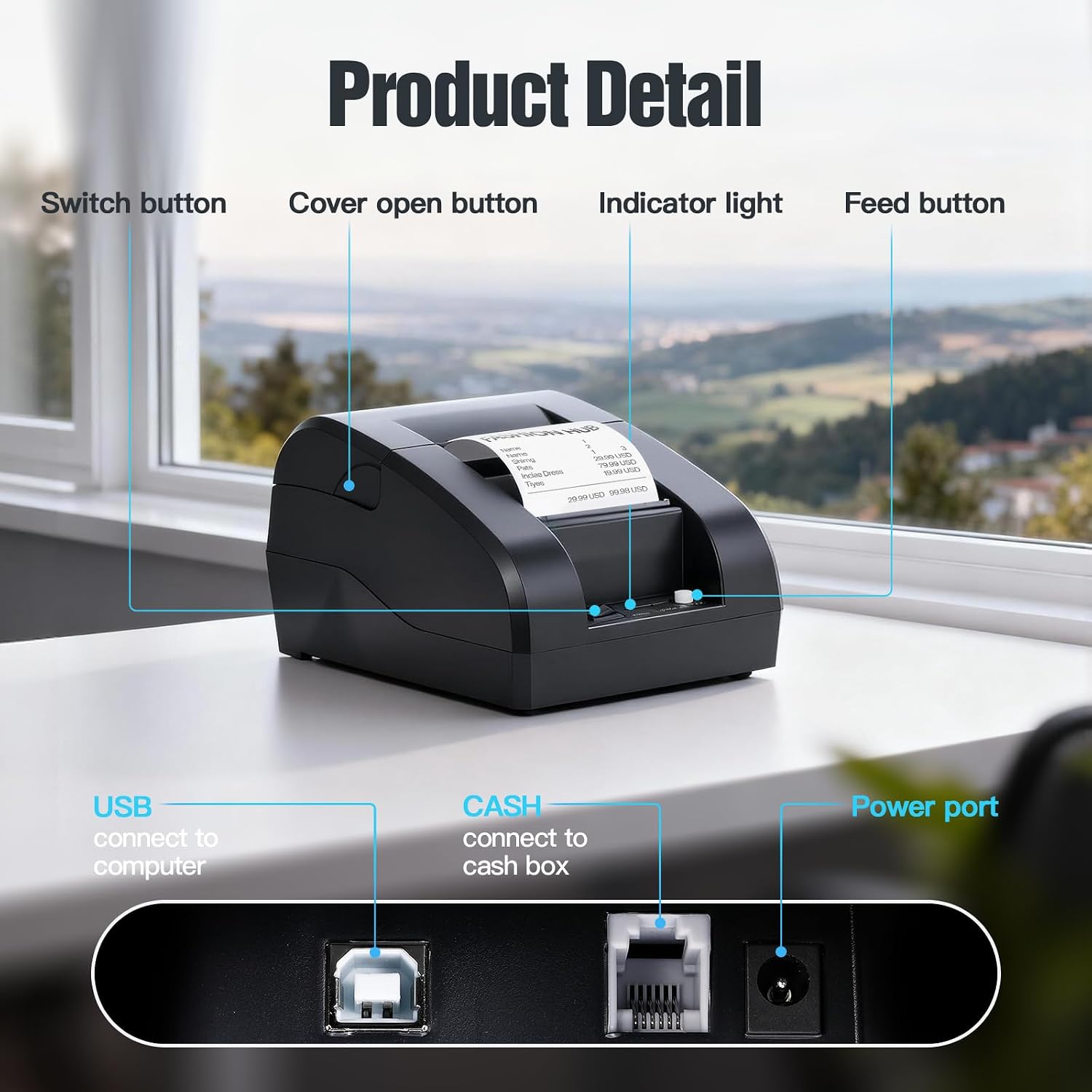
Figure 4.1: Front and Rear Panel Details.
- ប៊ូតុងប្តូរ៖ Powers the printer On/Off.
- Cover Open Button: Releases the top cover for paper roll installation.
- ពន្លឺសូចនាករ៖ Displays printer status (e.g., power, error, paper out).
- ប៊ូតុងចំណី៖ ចំណីក្រដាសដោយដៃ។
- ច្រក USB៖ Connects the printer to a computer via USB cable.
- CASH Port: Connects to a cash drawer.
- ច្រកថាមពល៖ ភ្ជាប់ទៅអាដាប់ទ័រថាមពល។
5. រៀបចំ
២. ការដំឡើងក្រដាស់រុំ
- Press the Cover Open Button to open the top cover.
- Insert a 58mm thermal paper roll into the compartment, ensuring the paper feeds from the bottom and the leading edge extends slightly out of the printer.
- បិទគម្របខាងលើឱ្យជាប់រហូតដល់វាចុចចូលកន្លែង។

Figure 5.1: Installing the thermal paper roll.
5.2. ការតភ្ជាប់ថាមពល
Connect the power adapter to the printer's Power Port and then plug the adapter into a power outlet.
5.3. ការភ្ជាប់ទៅកុំព្យូទ័រ (USB)
The printer supports USB connection for Windows and Linux operating systems. Note: This printer is not compatible with iOS or Mac OS via USB.
- ភ្ជាប់ម៉ាស៊ីនបោះពុម្ពទៅនឹងកុំព្យូទ័ររបស់អ្នកដោយប្រើខ្សែ USB ដែលបានផ្ដល់ឱ្យ។
- បើកម៉ាស៊ីនបោះពុម្ព។
- Download and install the appropriate printer driver for your operating system (Windows/Linux) from the Bisofice official webគេហទំព័រ ឬប្រព័ន្ធផ្សព្វផ្សាយដំឡើងដែលបានផ្តល់។
- អនុវត្តតាមការណែនាំនៅលើអេក្រង់ ដើម្បីបញ្ចប់ការដំឡើងកម្មវិធីបញ្ជា។
៤.៣. ការភ្ជាប់ទៅឧបករណ៍ចល័ត (ប៊្លូធូស)
The printer supports Bluetooth connection for Android smartphones. Note: This printer is not compatible with iOS via Bluetooth.
- ត្រូវប្រាកដថាម៉ាស៊ីនបោះពុម្ពត្រូវបានបើក។
- Enable Bluetooth on your Android smartphone.
- ស្វែងរក available Bluetooth devices and select the printer (usually named 'Z58-IV' or similar).
- Enter the pairing PIN if prompted (common PINs are '0000' or '1234').
- Once paired, you can use compatible Android applications (e.g., Loyverse, iREAP, CasierStock, Kyte) to print.

Figure 5.2: Connectivity options: USB to computer and Bluetooth to mobile phone.
6. សេចក្តីណែនាំប្រតិបត្តិការ
6.1. Printing a Receipt
After successful setup and connection, you can initiate printing from your application or system. The printer supports ESC/POS commands for various printing functions.
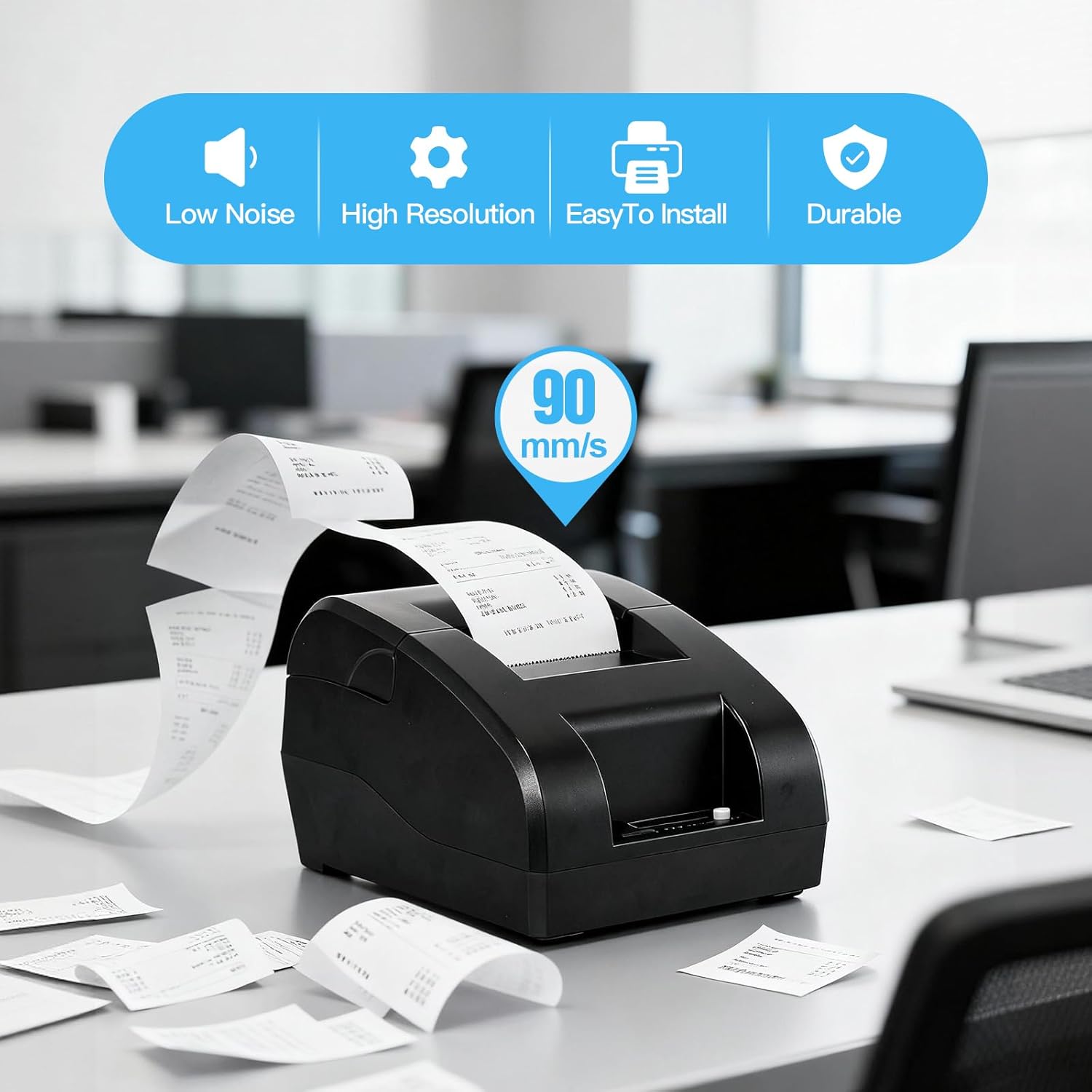
Figure 6.1: High-speed printing at 90mm/s.
6.2. Manual Paper Feed
Press the Feed Button briefly to advance the paper by one line. Press and hold the Feed Button to continuously feed paper.
7. ការថែទាំ
៧.១. ការសម្អាតក្បាលបោះពុម្ព
To maintain print quality, clean the thermal print head regularly (e.g., once a month or after every 10 rolls of paper). Use a cotton swab lightly moistened with isopropyl alcohol. Gently wipe the print head surface. Allow it to dry completely before use.
7.2. ការសម្អាតផ្នែកខាងក្រៅ
ជូតផ្នែកខាងក្រៅនៃម៉ាស៊ីនបោះពុម្ពដោយទន់ ឃamp ក្រណាត់។ ហាមប្រើសារធាតុគីមីខ្លាំង ឬថ្នាំលាងសម្អាត។
៥.២. ការជំនួសក្រដាសរមូរ
Refer to Section 5.1 for instructions on replacing the thermal paper roll when it runs out.
8. ការដោះស្រាយបញ្ហា
- ម៉ាស៊ីនបោះពុម្ពមិនបើក៖ សូមពិនិត្យមើលការតភ្ជាប់អាដាប់ទ័រថាមពល ហើយត្រូវប្រាកដថាព្រីភ្លើងដំណើរការ។
- ម៉ាស៊ីនបោះពុម្ពមិនបោះពុម្ពទេ៖
- Ensure the paper roll is correctly installed and not empty.
- Check the connection (USB or Bluetooth) to your device.
- ផ្ទៀងផ្ទាត់ថាកម្មវិធីបញ្ជាម៉ាស៊ីនបោះពុម្ពត្រឹមត្រូវត្រូវបានដំឡើង និងជ្រើសរើសនៅលើកុំព្យូទ័ររបស់អ្នក។
- For Bluetooth, ensure the printer is paired and connected to your Android device.
- គុណភាពបោះពុម្ពខ្សោយ៖ សម្អាតក្បាលបោះពុម្ពដូចដែលបានពិពណ៌នានៅក្នុងផ្នែកទី 7.1។ ត្រូវប្រាកដថាអ្នកកំពុងប្រើក្រដាសកម្ដៅដែលមានគុណភាពខ្ពស់។
- បញ្ហាភាពឆបគ្នា៖
- ម៉ាស៊ីនបោះពុម្ពគឺ មិនឆបគ្នា។ with iOS and Mac OS.
- ម៉ាស៊ីនបោះពុម្ពគឺ មិនឆបគ្នា។ with POS systems such as Square, Hellocash, and Zettle.
- For Android, ensure your application supports this printer model.
9. លក្ខណៈបច្ចេកទេស
| លក្ខណៈ | ការបញ្ជាក់ |
|---|---|
| ម៉ាក | Bisoffice |
| ឈ្មោះម៉ូដែល | Z58-IV |
| បច្ចេកវិទ្យាតភ្ជាប់ | ប៊្លូធូស, USB |
| បច្ចេកវិទ្យាបោះពុម្ព | កំដៅ |
| ពណ៌ | ខ្មៅ |
| លទ្ធផលម៉ាស៊ីនបោះពុម្ព | Monochromatic |
| ល្បឿនបោះពុម្ពអតិបរមា (ស និងខ្មៅ) | 90 mm/s |
| Max Paper Size Supported | 58 ម។ |
| វិមាត្រផលិតផល | 18P x 10.5L x 13H cm |
| សមាសធាតុរួមបញ្ចូល | ក្រដាសកំដៅ |
| មុខងារម៉ាស៊ីនបោះពុម្ពបន្ថែម | បោះពុម្ពតែប៉ុណ្ណោះ |
10. ការធានា និងការគាំទ្រ
For warranty information and technical support, please refer to the documentation provided with your purchase or visit the official Bisofice webគេហទំព័រ។ រក្សាបង្កាន់ដៃទិញរបស់អ្នកជាភស្តុតាងនៃការទិញសម្រាប់ការទាមទារធានា។