សេចក្តីផ្តើម
This manual provides essential information for setting up, operating, maintaining, and troubleshooting your Thunderobot Zero 18 Pro 5070 Ti Gaming Laptop. Please read this guide thoroughly to ensure optimal performance and longevity of your device.
តើមានអ្វីនៅក្នុងប្រអប់
នៅពេលវេចខ្ចប់ សូមផ្ទៀងផ្ទាត់ថាធាតុទាំងអស់ដែលបានរាយខាងក្រោមមានវត្តមាន៖
- THUNDEROBOT Zero Laptop
- អាដាប់ទ័រថាមពល
- សៀវភៅណែនាំអ្នកប្រើ (ឯកសារនេះ)
- ប័ណ្ណធានា
If any items are missing or damaged, contact your retailer or Thunderobot customer support immediately.
រៀបចំ
ការបើកថាមពលដំបូង
- Connect the power adapter to the laptop's power input port and then to a wall outlet.
- បើកគម្របកុំព្យូទ័រយួរដៃ។
- ចុចប៊ូតុងថាមពលដើម្បីបើកកុំព្យូទ័រយួរដៃ។
- អនុវត្តតាមការណែនាំនៅលើអេក្រង់ដើម្បីបញ្ចប់ការដំឡើង Windows 11 Home។
ការភ្ជាប់គ្រឿងកុំព្យូទ័រ
Utilize the available ports to connect external devices such as a mouse, keyboard, external display, or other accessories. Refer to the "Connectivity (Ports)" section for port details.
សេចក្តីណែនាំប្រតិបត្តិការ
បើក/បិទថាមពល
- To power on: Press the power button located on the keyboard deck.
- To shut down: Click the Start button, then Power, and select "Shut down".
- To restart: Click the Start button, then Power, and select "Restart".
- To sleep: Close the laptop lid or click the Start button, then Power, and select "Sleep".
Keyboard and RGB Lighting
The laptop features a full-size keyboard with per-key customizable RGB backlighting and a dedicated numeric keypad.
- Per-Key RGB Backlight: Customize individual key lighting through the AI Intelligent Control Center software.
- គ្រាប់ចុចមុខងារ៖ ប្រើ Fn key in combination with other keys for various functions (e.g., volume control, screen brightness, keyboard backlight adjustment).
- Performance Mode Switching: Dedicated keys (Fn+Space) allow for quick toggling between performance profiles.
- One-Click Cooling: A dedicated key (often near the numeric keypad) can activate maximum cooling. Ensure cooling mode is exited before using the first three keys to switch modes.
លក្ខណៈពិសេសបង្ហាញ
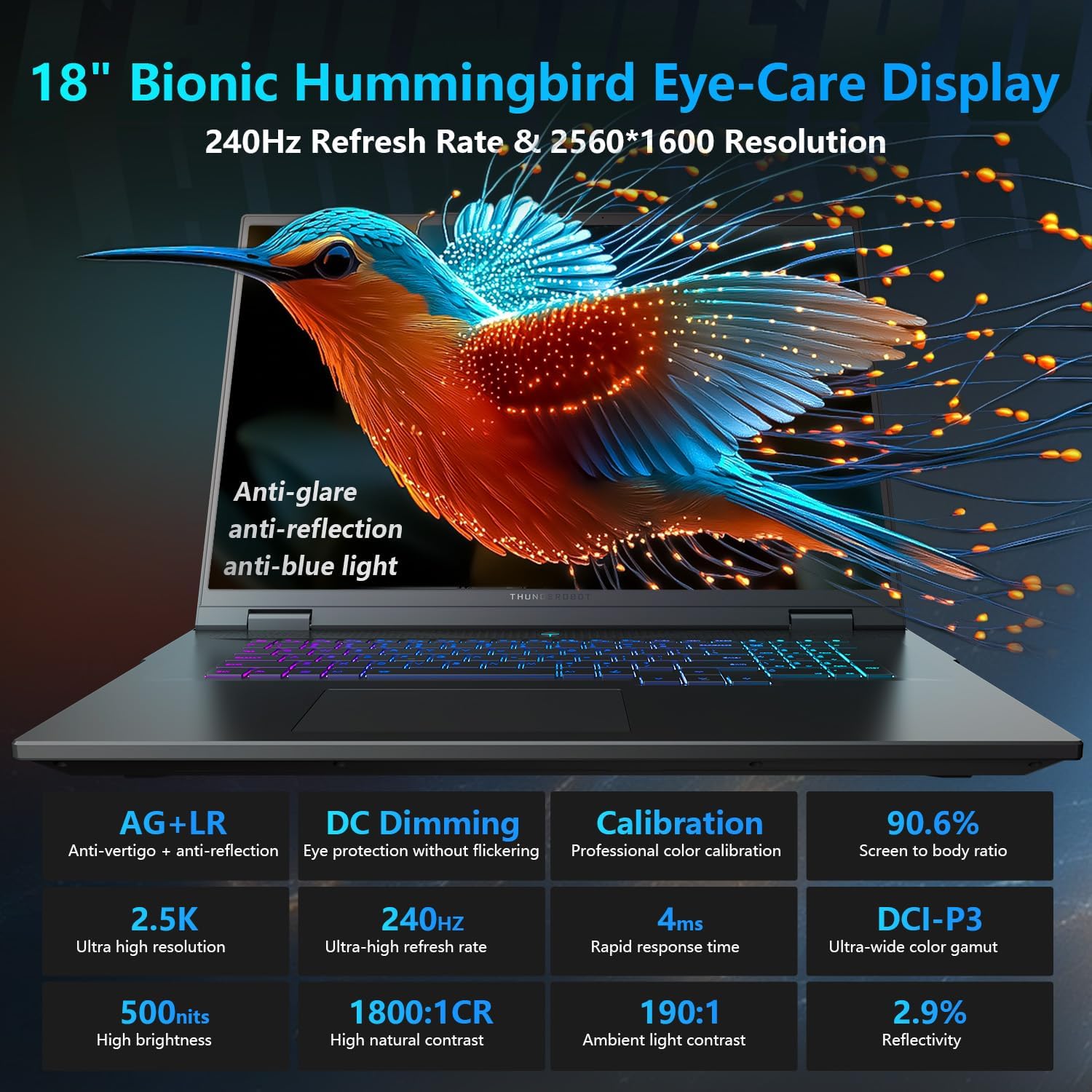
The 18-inch QHD+ (2560x1600) Bionic Hummingbird Eye-Care display offers a 240Hz refresh rate and 4ms response time for clear and fluid visuals. It includes anti-glare, anti-reflection, and anti-blue light technologies for eye comfort.

Connectivity (Ports)
The laptop is equipped with various ports for extensive connectivity:
- 3 x Superspeed USB Type-A ports
- 2 x Superspeed USB Type-C ports (including Thunderbolt 5 support)
- 1 x HDMI port (HDMI 2.1)
- រន្ធ Ethernet RJ-45 ចំនួន 1
- 1 x Audio Port (3.5mm)
- UHS-II SD Card Reader
- Wi-Fi 6E for high-speed wireless internet
- Bluetooth for wireless peripheral connections

ប្រព័ន្ធត្រជាក់
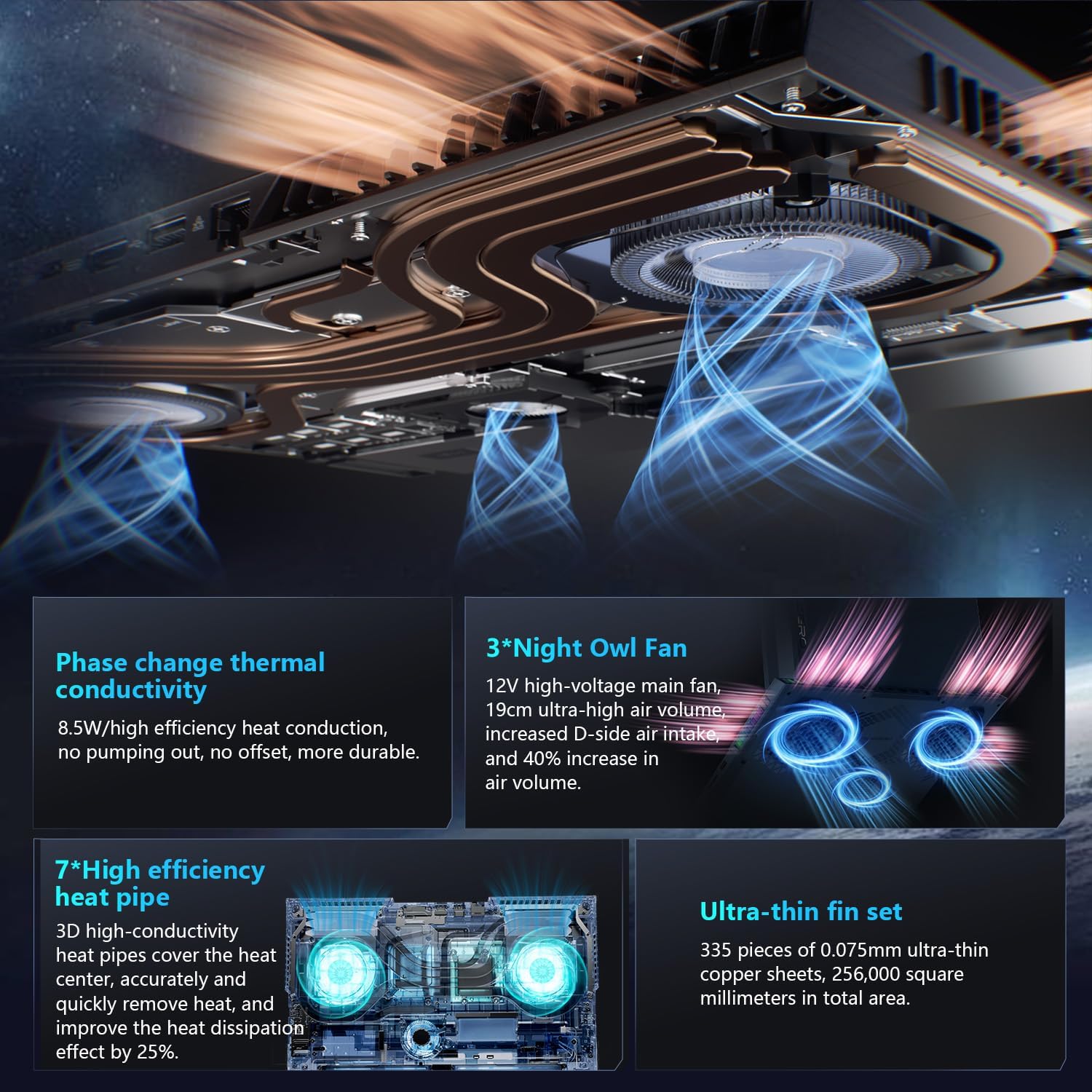
The advanced cooling system features 3 Night Owl fans, 7 high-efficiency heat pipes, and 338 ultra-thin copper fins to ensure optimal thermal management during intensive use, allowing for 270W super performance release.
AI Intelligent Control Center
The AI Intelligent Control Center software allows for comprehensive system management, including performance tuning, intelligent light adjustment, and personalized customization. This includes monitoring CPU/GPU temperatures and fan speeds.
- ការលៃតម្រូវការអនុវត្ត៖ Adjust power settings for quiet, balanced, or turbo modes.
- Intelligent Light Adjustment: Customize keyboard, strip, and logo RGB lighting effects.
- ការត្រួតពិនិត្យប្រព័ន្ធ៖ View real-time CPU and GPU status.
Note: System mode switching in Control Center requires the device to be connected to a power source.
ថែទាំ
ការសម្អាតកុំព្យូទ័រយួរដៃរបស់អ្នក។
- អេក្រង់៖ ប្រើក្រណាត់ទន់ៗ គ្មានជាតិសរសៃ ឃampបំពាក់ដោយទឹក ឬឧបករណ៍សម្អាតអេក្រង់។ ជៀសវាងសារធាតុគីមីធ្ងន់ធ្ងរ។
- ក្ដារចុច និងតួ៖ ប្រើក្រណាត់ទន់ដើម្បីជូតផ្ទៃ។ ចំពោះធូលីក្នុងស្នាមប្រេះ សូមប្រើខ្យល់ដែលបានបង្ហាប់។
- រន្ធ៖ Periodically clean the cooling vents with compressed air to prevent dust buildup, which can affect performance.
ការថែរក្សាថ្ម
- ជៀសវាងការរំសាយថ្មពេញញឹកញាប់។
- ទុកកុំព្យូទ័រយួរដៃក្នុងកន្លែងត្រជាក់ និងស្ងួត ប្រសិនបើមិនប្រើរយៈពេលយូរ។
- ដើម្បីសុខភាពថ្មល្អបំផុត សូមជៀសវាងសីតុណ្ហភាពខ្លាំងពេក។
ការអាប់ដេតកម្មវិធី
Regularly check for and install operating system updates (Windows Update) and driver updates (via Thunderobot's official website or the AI Intelligent Control Center) to ensure system stability and performance.
ការដោះស្រាយបញ្ហា
| បញ្ហា | មូលហេតុដែលអាចកើតមាន | ដំណោះស្រាយ |
|---|---|---|
| កុំព្យូទ័រយួរដៃមិនបើកទេ។ | គ្មានថាមពល ថ្មអស់ ឬបញ្ហាផ្នែករឹងទេ។ |
|
| អេក្រង់ទទេ ឬខ្មៅ។ | Display settings, external monitor connected, or hardware issue. |
|
| ការឡើងកំដៅខ្លាំងអំឡុងពេលប្រើប្រាស់។ | Blocked vents, high performance settings, or dust buildup. |
|
| បញ្ហាការតភ្ជាប់ Wi-Fi ។ | Wi-Fi disabled, driver issues, or router problems. |
|
For further assistance, please contact Thunderobot customer support.
លក្ខណៈបច្ចេកទេស
| លក្ខណៈ | លម្អិត |
|---|---|
| ឈ្មោះម៉ូដែល | Zero 18 Pro |
| ម៉ាស៊ីនដំណើរការ | Intel Core Ultra 9 275HX (24 Cores, 24 Threads, up to 5.40GHz) |
| ក្រាហ្វិក | NVIDIA GeForce RTX 5070 Ti (8 GB GDDR6 Dedicated) |
| RAM | 32 GB DDR5 (4800 MHz) |
| ការផ្ទុក | SSD PCIe M.2 ទំហំ 2 TB |
| បង្ហាញ | 18-inch QHD+ (2560x1600) 240Hz Bionic Hummingbird Eye-Care Display |
| ប្រព័ន្ធប្រតិបត្តិការ | ទំព័រដើម Windows 11 |
| ការតភ្ជាប់ | Wi-Fi 6E, Bluetooth, 3x USB-A, 2x USB-C (Thunderbolt 5), HDMI 2.1, RJ-45, Audio Port |
| ក្ដារចុច | Per-Key RGB Backlit, Numeric Keypad |
| វិមាត្រ (LxWxH) | 16.04 x 11.78 x 1.41 អ៊ីញ |
| ទំងន់ធាតុ | 15 ផោន |
| ប្រភពថាមពល | AC & ថ្ម |
ការធានា និងការគាំទ្រ
Every Thunderobot laptop includes a ការធានារយៈពេល 12 ខែ, offering expert support, thorough diagnostics, and genuine parts if a repair is needed. Additionally, a ការធានារយៈពេល 90 ថ្ងៃ។ is provided on all warranty replacement parts, ensuring hassle-free repairs. Your complete satisfaction is our commitment.
For technical support, warranty claims, or service inquiries, please visit the official Thunderobot website or contact their customer service department. Keep your purchase receipt and serial number handy for faster service.