
សេចក្តីផ្តើម
This manual provides essential instructions for setting up, operating, and maintaining your Plimpton PlimPad Kids20 tablet. This device is designed for children, featuring Android 14, an Octa-core processor, 8GB RAM (expandable), 64GB ROM (expandable to 1TB), and a durable EVA shockproof case. It includes pre-installed Google Kids Space and parental control features to ensure a safe and educational experience.
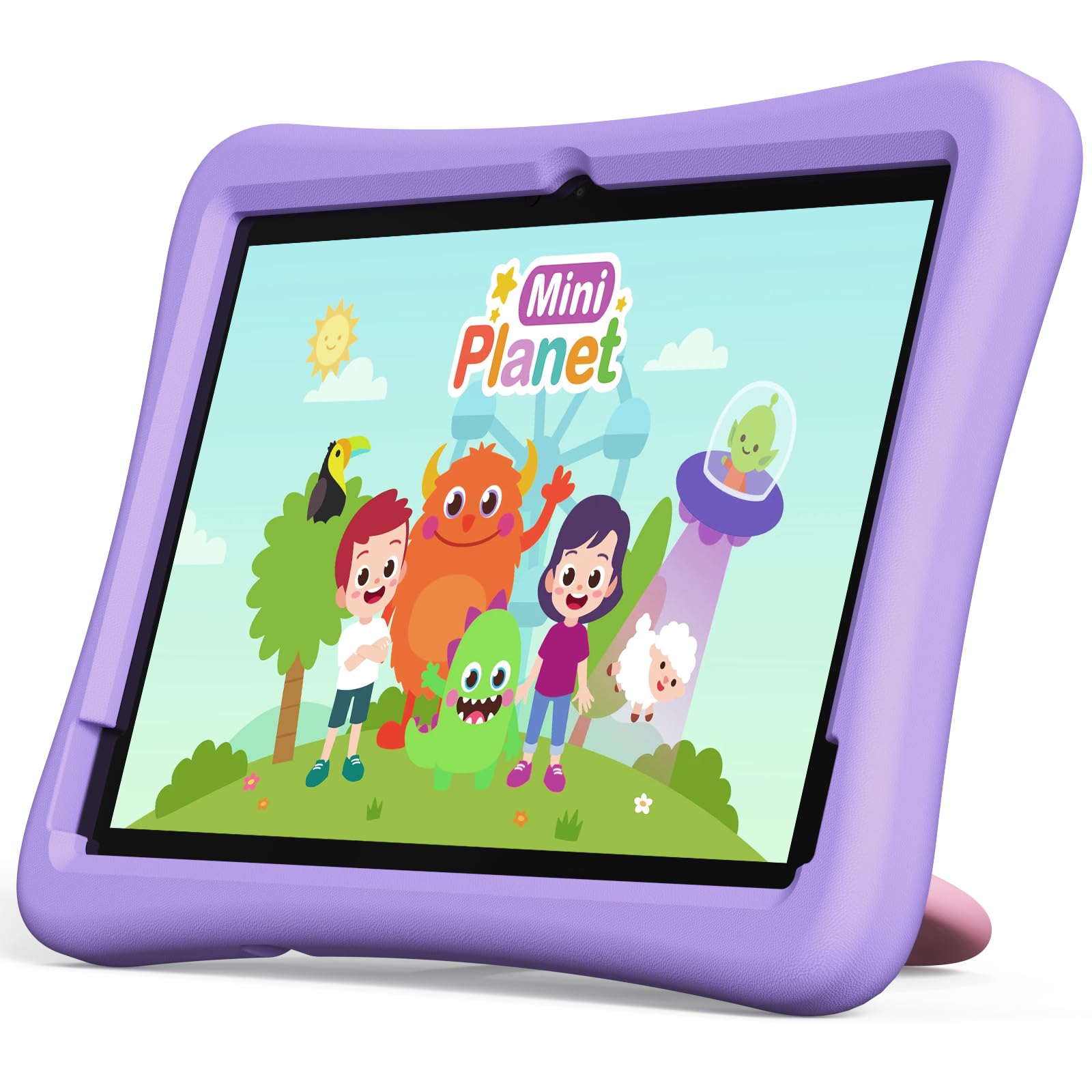
Image: The Plimpton PlimPad Kids20 tablet in its violet shockproof EVA case.
តើមានអ្វីនៅក្នុងប្រអប់
ផ្ទៀងផ្ទាត់ថាធាតុទាំងអស់មានវត្តមាននៅក្នុងកញ្ចប់ មុនពេលបន្តការដំឡើង។
- 1x Plimpton PlimPad Kids20 Tablet
- អាដាប់ទ័រយូអេសប៊ី ១ x
- 1x 1.8m Charging Cable
- 1x សៀវភៅណែនាំអ្នកប្រើប្រាស់
រៀបចំ
1. សាកថ្មថេប្លេត
Before first use, fully charge the tablet.
- Connect the USB charging cable to the tablet's USB Type-C port.
- ដោតអាដាប់ធ័រយូអេសប៊ីចូលក្នុងព្រីភ្លើង។
- សូចនាករនៃការសាកថ្មនឹងបំភ្លឺ។ ទុកពេលជាច្រើនម៉ោងសម្រាប់ការសាកថ្មពេញ។
បើក / បិទថាមពល
- ដើម្បីបើកដំណើរការ៖ ចុចប៊ូតុងថាមពលឱ្យជាប់រហូតទាល់តែអេក្រង់ភ្លឺ។
- ដើម្បីបិទថាមពល៖ ចុចឲ្យជាប់ប៊ូតុងថាមពល រួចជ្រើសរើស "បិទថាមពល" ពីជម្រើសនៅលើអេក្រង់។
- ដើម្បីចាប់ផ្តើមឡើងវិញ៖ ចុចប៊ូតុងថាមពលឱ្យជាប់ បន្ទាប់មកជ្រើសរើស "ចាប់ផ្តើមឡើងវិញ" ពីជម្រើស។
3. ការដំឡើងដំបូង
Upon first power-on, follow the on-screen prompts to configure your tablet. This typically includes:
- ការជ្រើសរើសភាសារបស់អ្នក។
- Connecting to a Wi-Fi network (supports Wi-Fi 6, 2.4GHz + 5.0GHz).
- Setting up a Google account. This is crucial for accessing Google Kids Space and downloading apps.
- កំពុងកំណត់រចនាសម្ព័ន្ធកាលបរិច្ឆេទ និងពេលវេលា។
4. ការបញ្ចូលកាត Micro SD
The tablet supports Micro SD cards up to 1TB for expanded storage.
- រកទីតាំងរន្ធដោតកាត Micro SD នៅចំហៀងថេប្លេត។
- បញ្ចូលកាត Micro SD ដោយប្រុងប្រយ័ត្នទៅក្នុងរន្ធរហូតដល់វាចុចចូលកន្លែង។
- The tablet will detect the new storage. You may be prompted to format it for use as portable or internal storage.
ដំណើរការឧបករណ៍ Tablet
1. ការរុករកមូលដ្ឋាន
The PlimPad Kids20 uses a capacitive touchscreen for interaction.
- ប៉ះ៖ ជ្រើសរើសធាតុ ឬបើកកម្មវិធី។
- ប៉ះនិងសង្កត់៖ ចូលប្រើម៉ឺនុយបរិបទ ឬផ្លាស់ទីរូបតំណាង។
- អូស៖ Navigate through screens or scroll within applications.
- Pinch-to-Zoom: Enlarge or reduce content (e.g., photos, web ទំព័រ)។
2. Google Kids Space
The tablet comes with Google Kids Space pre-installed, offering a curated selection of educational and entertaining content.

Image: A child and adult interacting with the tablet, showing the Google Kids Space interface.
- Access Kids Space from the home screen or app drawer.
- Content includes interactive educational apps, books, games, and videos.
- Content is teacher-approved and designed to promote learning and creativity.
៥. ការគ្រប់គ្រងដោយមាតាបិតា (Google Family Link)
Manage your child's tablet usage and ensure a safe online environment using Google Family Link.

Image: A child using the tablet, with an overlay indicating Google Family Link for parental control.
- Download the Google Family Link app on your own device.
- Link your child's Google account on the tablet to your Family Link account.
- Through Family Link, you can:
- Set screen time limits.
- Approve or block app downloads.
- គ្រប់គ្រង webការចូលប្រើគេហទំព័រ។
- Track device location.
4. ការតភ្ជាប់
- វ៉ាយហ្វាយ៖ Connect to wireless networks via Settings > Network & internet > Wi-Fi. The tablet supports dual-band Wi-Fi (2.4/5 GHz) for fast and stable connections.
- ប៊្លូធូស ៤.០ ភ្ជាប់ជាមួយឧបករណ៍ប៊្លូធូសដូចជាកាសស្តាប់ត្រចៀក ឬឧបករណ៍បំពងសម្លេងតាមរយៈ ការកំណត់ > ឧបករណ៍ដែលបានភ្ជាប់ > ប៊្លូធូស។
5. ការប្រើប្រាស់កាមេរ៉ា
ថេប្លេតនេះមានកាមេរ៉ាខាងក្រោយទំហំ 5MP និងកាមេរ៉ាខាងមុខទំហំ 2MP។
- បើកកម្មវិធីកាមេរ៉ាពីអេក្រង់ដើម ឬថតកម្មវិធី។
- Switch between front and rear cameras as needed.
- ចុចប៊ូតុងថតដើម្បីថតរូប ឬថតវីដេអូ។
ថែទាំ
1. សម្អាត Tablet
- ប្រើក្រណាត់ទន់ និងគ្មានជាតិសរសៃ ដើម្បីសម្អាតអេក្រង់ និងតួ។
- ចំពោះស្នាមប្រឡាក់រឹងរូសបន្តិច ឃampខ្ចប់ក្រណាត់ជាមួយទឹក ឬឧបករណ៍សម្អាតអេក្រង់។
- ជៀសវាងសារធាតុគីមីរឹង ឬសារធាតុសំណឹក។
2. ការធ្វើបច្ចុប្បន្នភាពកម្មវិធី
ពិនិត្យ និងដំឡើងបច្ចុប្បន្នភាពកម្មវិធីជាទៀងទាត់ ដើម្បីធានាបាននូវប្រសិទ្ធភាព និងសុវត្ថិភាពល្អបំផុត។
- ចូលទៅកាន់ការកំណត់> ប្រព័ន្ធ> ការធ្វើបច្ចុប្បន្នភាពប្រព័ន្ធ។
- អនុវត្តតាមការណែនាំនៅលើអេក្រង់ ដើម្បីទាញយក និងដំឡើងបច្ចុប្បន្នភាពដែលមាន។
3. ការគ្រប់គ្រងការផ្ទុក
To maintain performance, periodically manage the tablet's storage.
- Go to Settings > Storage to view ការប្រើប្រាស់ការផ្ទុក។
- លុបកម្មវិធីដែលមិនប្រើ។
- លុបមិនចាំបាច់ files, photos, or videos.
- ផ្លាស់ទីធំ files to an inserted Micro SD card.
ការដោះស្រាយបញ្ហា
If you encounter issues, try the following solutions before contacting support.
| បញ្ហា | ដំណោះស្រាយ |
|---|---|
| ថេប្លេតមិនបើកទេ។ | Ensure the tablet is fully charged. Connect it to the charger for at least 30 minutes, then try powering on again. |
| បញ្ហាការតភ្ជាប់ Wi-Fi ។ | ចាប់ផ្ដើមថេប្លេត និងរ៉ោតទ័រ Wi-Fi របស់អ្នកឡើងវិញ។ ពិនិត្យមើលការកំណត់ Wi-Fi ដើម្បីធានាថាបណ្តាញត្រឹមត្រូវត្រូវបានជ្រើសរើស និងពាក្យសម្ងាត់ត្រូវបានបញ្ចូលត្រឹមត្រូវ។ |
| កម្មវិធីកំពុងគាំង ឬបង្កក។ | Close and reopen the app. Clear the app's cache (Settings > Apps > [App Name] > Storage & cache > Clear cache). If the problem persists, uninstall and reinstall the app. |
| ដំណើរការយឺត។ | បិទកម្មវិធីដែលមិនប្រើ។ សម្អាតឃ្លាំងសម្ងាត់ និងបណ្ដោះអាសន្ន files. Consider uninstalling large, unused applications or moving data to an SD card. Restart the tablet. |
| អេក្រង់មិនឆ្លើយតប។ | Perform a forced restart by holding the Power button for approximately 10-15 seconds until the tablet restarts. |
លក្ខណៈបច្ចេកទេស
Key technical specifications for the Plimpton PlimPad Kids20 tablet.
| លក្ខណៈ | លម្អិត |
|---|---|
| ឈ្មោះម៉ូដែល | Plimpad Kids20 |
| ប្រព័ន្ធប្រតិបត្តិការ | ប្រព័ន្ធប្រតិបត្តិការ Android 14 |
| ម៉ាស៊ីនដំណើរការ | Allwinner A523 Octa-core (up to 2.0 GHz) |
| RAM | 8 GB (4 GB + 4 GB extended virtual memory) |
| ឧបករណ៍ផ្ទុកខាងក្នុង (រ៉ូម) | 64 ជីកាបៃ |
| ការផ្ទុកដែលអាចពង្រីកបាន។ | Up to 1 TB via Micro SD card |
| ទំហំអេក្រង់ | ៤.៧៥ អ៊ីញ |
| គុណភាពបង្ហាញ | ១២៨០ x ៨០០ ភីកសែល (HD IPS) |
| ប្រភេទបង្ហាញ | LCD, G+G wear-resistant glass |
| សមត្ថភាពថ្ម | 6000 mAh Lithium-ion (22.8 Wh) |
| កាមេរ៉ាក្រោយ | 5 មេហ្គាភិចសែល |
| កាមេរ៉ាខាងមុខ | 2 មេហ្គាភិចសែល |
| វ៉ាយហ្វាយ | Wi-Fi 6 (802.11ax), Dual-band (2.4 GHz + 5.0 GHz) |
| ប៊្លូធូស | ប៊្លូធូស 5.3 |
| ច្រក | USB Type-C, 3.5mm Headphone Jack, Micro SD slot |
| លក្ខណៈពិសេស | Stereo Speakers, USB OTG support, Eye-care screen, EVA shockproof case with 360-degree rotating handle |
| វិមាត្រ | 24L x 16.1W x 0.9H សង់ទីម៉ែត្រ |
ការធានា និងការគាំទ្រ
The Plimpton PlimPad Kids20 tablet comes with a ការធានាលើការប្តូរថ្មីដោយឥតគិតថ្លៃ 2 ឆ្នាំ។.
For any issues, including screen damage or operational problems, please contact our professional after-sales customer service. Refer to the contact information provided with your purchase or on the official Plimpton webគេហទំព័រ។
សំខាន់៖ Do not attempt to repair the device yourself, as this may void your warranty.