
1. សេចក្តីផ្តើម
This manual provides detailed instructions for the setup, operation, and maintenance of your ASprink PM-247-WF WiFi Thermal Label Printer. This printer is designed for efficient label printing for small businesses and packages, featuring 300DPI resolution and versatile connectivity options including Wi-Fi and USB.
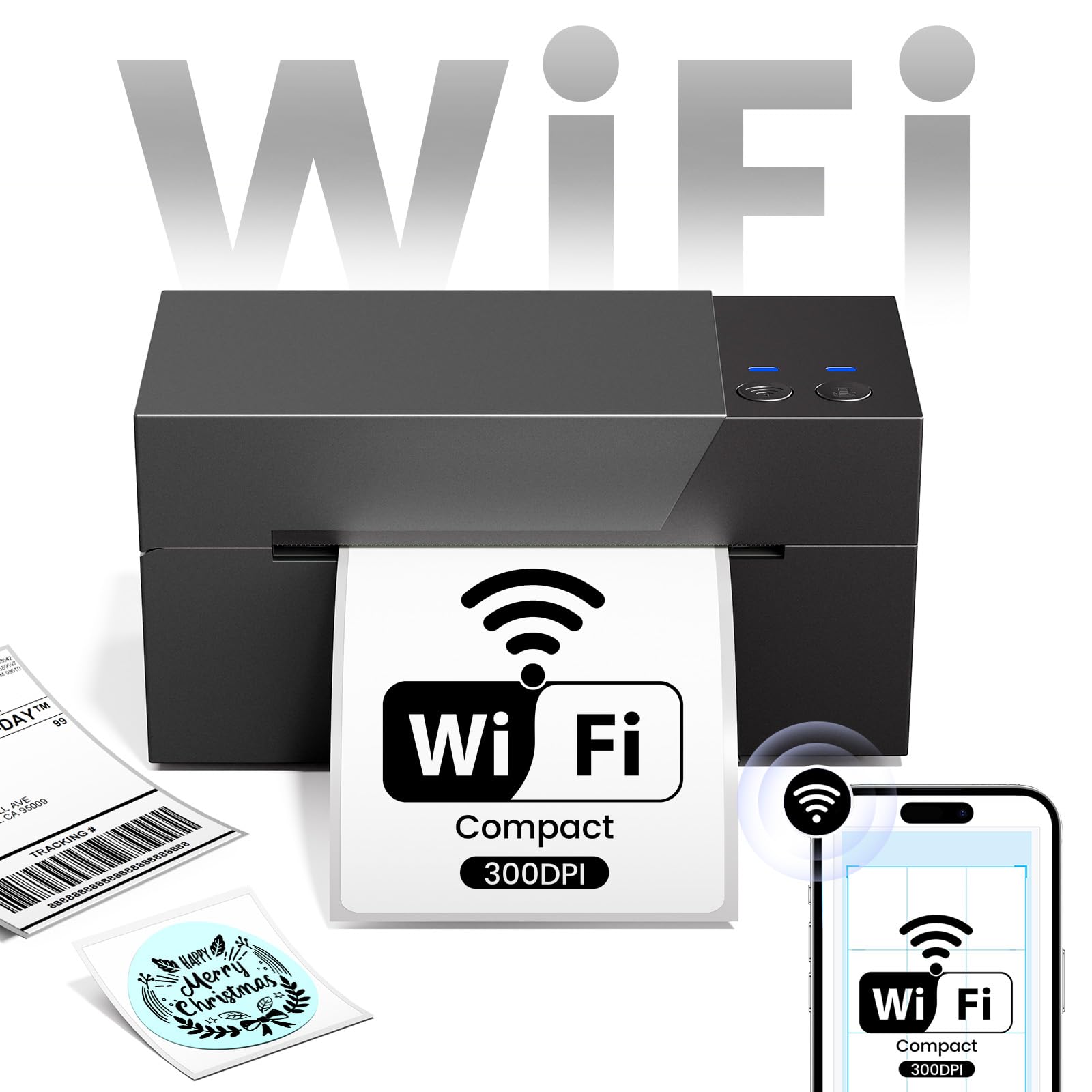
Image 1.1: ASprink PM-247-WF WiFi Thermal Label Printer.
2. មាតិកាកញ្ចប់
សូមផ្ទៀងផ្ទាត់ថាធាតុទាំងអស់មាននៅក្នុងកញ្ចប់៖
- ASprink PM-247-WF Thermal Label Printer
- អាដាប់ទ័រថាមពល
- ខ្សែ USB
- មគ្គុទ្ទេសក៍ចាប់ផ្តើមរហ័ស (សៀវភៅណែនាំនេះ)
- Sample Thermal Labels (may vary)
3. ផលិតផលលើសview
The ASprink PM-247-WF printer is designed for ease of use and compact integration into your workspace. It supports label widths from 1 to 4.6 inches, accommodating various label types including 4x6 inch shipping labels.

Image 3.1: The ASprink PM-247-WF printer supports various label widths from 1 to 4.6 inches.
4. រៀបចំ
4.1 ការតភ្ជាប់រាងកាយ
- ដាក់ម៉ាស៊ីនបោះពុម្ពលើផ្ទៃរាបស្មើ។
- ភ្ជាប់អាដាប់ទ័រថាមពលទៅនឹងម៉ាស៊ីនបោះពុម្ព ហើយបន្ទាប់មកទៅព្រីភ្លើង។
- If using a USB connection, connect the USB cable from the printer to your computer.
៦.១ ការផ្ទុកស្លាក
- បើកគម្របខាងលើរបស់ម៉ាស៊ីនបោះពុម្ព។
- Insert the thermal labels into the label compartment, ensuring the print side is facing up.
- Adjust the label guides to fit the width of your labels snugly.
- Close the top cover. The printer will automatically detect and calibrate the label size.
4.3 ការដំឡើងកម្មវិធីបញ្ជា និងកម្មវិធី
For optimal performance, install the necessary drivers and software:
- For Computers (Windows, Mac, Linux, Chrome OS): Download and install the latest printer drivers from the official ASprink support webគេហទំព័រ។
- For Mobile Devices (Android, iOS): Download the "Labelife" application from your device's app store.
4.4 ការតភ្ជាប់ Wi-Fi
The PM-247-WF supports Wi-Fi connectivity for wireless printing from multiple devices.
- ត្រូវប្រាកដថាម៉ាស៊ីនបោះពុម្ពរបស់អ្នកត្រូវបានបើក។
- Follow the Wi-Fi setup instructions provided in the "Labelife" app or the printer driver software to connect the printer to your local Wi-Fi network.
- នៅពេលភ្ជាប់រួច ភ្លើងសញ្ញា Wi-Fi នៅលើម៉ាស៊ីនបោះពុម្ពនឹងភ្លឺជាប់លាប់។

Image 4.1: The ASprink PM-247-WF supports Wi-Fi connectivity with Android, iOS, iPad, Windows, Mac OS, and Chrome OS.
5. សេចក្តីណែនាំប្រតិបត្តិការ
5.1 Printing via Wi-Fi
The Wi-Fi feature allows printing from anywhere within your Wi-Fi range, supporting up to 5 devices simultaneously.
- Ensure your device (computer, smartphone, tablet) is connected to the same Wi-Fi network as the printer.
- បើកឯកសារ ឬស្លាកដែលអ្នកចង់បោះពុម្ព។
- Select the ASprink PM-247-WF from your list of available printers.
- Adjust print settings (e.g., label size, orientation) as needed and initiate printing.

Image 5.1: Wi-Fi connectivity enables convenient printing from various locations within your network.

Image 5.2: Wi-Fi printing allows greater flexibility compared to proximity-limited Bluetooth printing.

Image 5.3: The printer supports simultaneous connections and printing from up to 5 devices.
5.2 Printing via USB
For direct connection, you can use the USB cable.
- ភ្ជាប់ម៉ាស៊ីនបោះពុម្ពទៅនឹងកុំព្យូទ័ររបស់អ្នកដោយប្រើខ្សែ USB ដែលបានផ្ដល់ឱ្យ។
- ត្រូវប្រាកដថាកម្មវិធីបញ្ជាម៉ាស៊ីនបោះពុម្ពត្រូវបានដំឡើងនៅលើកុំព្យូទ័ររបស់អ្នក។
- Open the document or label, select the ASprink PM-247-WF printer, and print.
5.3 Supported Platforms and Print Quality
The ASprink PM-247-WF is compatible with major shipping partners and marketplaces, including eBay, Amazon, Etsy, Shopify, ShipStation, USPS, UPS, FedEx, and more. It delivers a print resolution of 300DPI, ensuring clear and crisp labels. The printing speed is approximately 100mm/s, capable of producing up to 72 sheets of 4"x 6" labels per minute.

Image 5.4: The printer is widely compatible with various e-commerce and shipping platforms.
6. ការថែទាំ
ការថែទាំជាប្រចាំធានានូវអាយុកាលប្រើប្រាស់បានយូរ និងដំណើរការល្អបំផុតរបស់ម៉ាស៊ីនព្រីនរបស់អ្នក។
- ការសម្អាតក្បាលបោះពុម្ព៖ Use a lint-free cloth lightly dampened with isopropyl alcohol to gently wipe the print head. Ensure the printer is off and cooled down before cleaning.
- ការសម្អាតរំកិល៖ Periodically clean the rubber rollers with a damp cloth to prevent dust and label residue buildup.
- ថែទាំទូទៅ៖ Keep the printer free from dust and debris. Avoid exposing it to extreme temperatures or direct sunlight.
7. ការដោះស្រាយបញ្ហា
If you encounter issues with your ASprink PM-247-WF printer, refer to the following common solutions:
- ម៉ាស៊ីនបោះពុម្ពមិនឆ្លើយតប៖ Check power connections and ensure the printer is turned on. Verify USB or Wi-Fi connection status.
- គុណភាពបោះពុម្ពខ្សោយ៖ Ensure you are using high-quality thermal labels. Clean the print head as described in the Maintenance section. Verify print settings (e.g., darkness, resolution) in your software.
- ស្លាកមិនផ្តល់ចំណីត្រឹមត្រូវ៖ Ensure labels are loaded properly and the label guides are adjusted. Recalibrate the printer if necessary (refer to software instructions).
- បញ្ហានៃការតភ្ជាប់៖ For Wi-Fi, ensure the printer and your device are on the same network. For USB, try a different USB port or cable. Reinstall drivers if issues persist.
For further assistance, please contact ASprink support.
8. លក្ខណៈបច្ចេកទេស
| លក្ខណៈ | ការបញ្ជាក់ |
|---|---|
| លេខម៉ូដែល | PM-247-WF |
| វិមាត្រ (D x W x H) | 18D x 19.3W x 11.2H សង់ទីម៉ែត្រ |
| ទំងន់ធាតុ | 1360 ក្រាម។ |
| ការតភ្ជាប់ | USB, Wi-Fi |
| បច្ចេកវិទ្យាបោះពុម្ព | កំដៅ |
| ដំណោះស្រាយបោះពុម្ព | 300DPI |
| ល្បឿនបោះពុម្ពអតិបរមា | 100mm/s (approx. 72 sheets of 4"x6" labels/minute) |
| ទំហំមេឌៀអតិបរមា | ១១.៣៧ x ១២.៥ អ៊ីញ |
| ទទឹងស្លាកដែលគាំទ្រ | ២៦-៦៥ អ៊ីញ |
| ប្រព័ន្ធប្រតិបត្តិការដែលត្រូវគ្នា។ | Android, iOS, Mac, Windows, Linux, Chrome OS |
9. ការធានា និងការគាំទ្រ
ASprink provides free, lifetime technical support for your PM-247-WF printer. If you require assistance, please contact the ASprink support team via phone, online chat, or email. Support inquiries are typically answered within 24 hours.
For the most up-to-date contact information, please visit the official ASprink webគេហទំព័រ។