
1. សេចក្តីផ្តើម
Thank you for choosing the Cherry KW 7100 Mini Multi-Device Compact Keyboard. This manual provides essential information for setting up, operating, and maintaining your new keyboard. Designed for versatility and portability, this keyboard offers seamless connectivity across multiple devices.
2. តើមានអ្វីនៅក្នុងប្រអប់
- Cherry KW 7100 Mini Multi-Device Compact Keyboard
- USB-C to USB-A Charging/Connection Cable
- ថ្ម 2x AAA
- 2.4 GHz Wireless Nano Receiver (stored magnetically in the keyboard)
- កាបូបស្ពាយ
- សៀវភៅណែនាំ

រូបភាពទី ៩៖ ពីលើចុះក្រោម view of the Cherry KW 7100 Mini Keyboard.
3. រៀបចំ
3.1. ការដំឡើងថ្ម
- ស្វែងរកកន្លែងដាក់ថ្មនៅផ្នែកខាងក្រោមនៃក្តារចុច។
- រុញបើកគម្របបន្ទប់ថ្ម។
- បញ្ចូលថ្ម AAA ពីរ ធានាប៉ូលត្រឹមត្រូវ (+/-) ។
- បិទគម្របប្រអប់ថ្មដោយសុវត្ថិភាព។
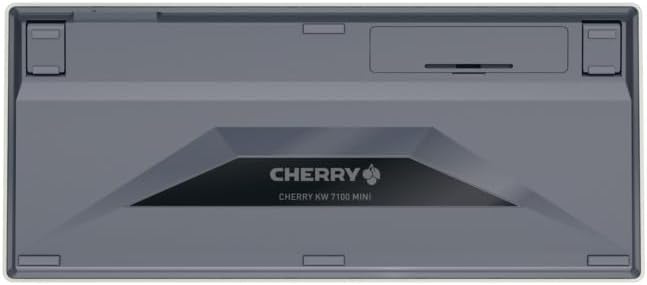
រូបភាពទី 2: ផ្នែកខាងក្រោមនៃក្តារចុចដែលមានបន្ទប់ថ្ម។
3.2. ការភ្ជាប់ក្តារចុច
The Cherry KW 7100 Mini supports three connection methods: Bluetooth, 2.4 GHz Wireless, and Wired USB-C.
3.2.1. Bluetooth Connection (Up to 3 Devices)
- បើកក្តារចុចដោយប្រើកុងតាក់ថាមពលដែលមានទីតាំងនៅចំហៀង។
- Press and hold one of the Bluetooth channel keys (F1, F2, or F3) for 3-5 seconds until the corresponding LED indicator blinks rapidly. This indicates pairing mode.
- On your device (laptop, smartphone, tablet), navigate to Bluetooth settings and search for available devices.
- Select "Cherry KW 7100" from the list to pair. The LED will stop blinking and remain solid for a few seconds upon successful connection.
- Repeat for up to two additional devices using the other Bluetooth channel keys (F1, F2, or F3).
៣.២. ការតភ្ជាប់ឥតខ្សែ 2.4 GHz
- Locate the 2.4 GHz wireless nano receiver, typically stored magnetically in a slot on the underside of the keyboard.
- Insert the nano receiver into an available USB-A port on your computer.
- Turn on the keyboard using the power switch. The keyboard should automatically connect to the receiver.
3.2.3. Wired USB-C Connection
- Connect one end of the provided USB-C cable to the USB-C port on the keyboard.
- ភ្ជាប់ចុងម្ខាងទៀតនៃខ្សែ USB-C ទៅនឹងរន្ធ USB-A ដែលមាននៅលើកុំព្យូទ័ររបស់អ្នក។
- The keyboard will function as a wired keyboard.
Video 1: Demonstrating the setup and typing experience of the Cherry KW 7100 Mini Keyboard.
4. ដំណើរការក្តារចុច
4.1. ការប្តូររវាងឧបករណ៍ដែលបានភ្ជាប់
To switch between paired Bluetooth devices, simply press the corresponding Bluetooth channel key (F1, F2, or F3) that your device is paired to. The keyboard will automatically connect to the selected device.
4.2. Function Keys (FN)
The keyboard features a dedicated FN key, typically located near the right Shift key. This key, in combination with other keys, activates secondary functions such as media controls, screen brightness, and other system commands. Refer to the keycap legends for specific FN key combinations.
4.3. សូចនាករ LED
LED indicators on the keyboard provide information about its status:
- Bluetooth Channel LEDs (F1, F2, F3): Indicate the currently active Bluetooth connection or pairing mode.
- Caps Lock LED៖ Illuminates when Caps Lock is active.
- LED ស្ថានភាពថ្ម៖ បង្ហាញពីកម្រិតថ្មទាប។
4.4. ជើងដែលអាចលៃតម្រូវបាន
The keyboard is equipped with stable, fold-out feet on the underside. These allow you to adjust the typing angle for improved ergonomics and comfort.
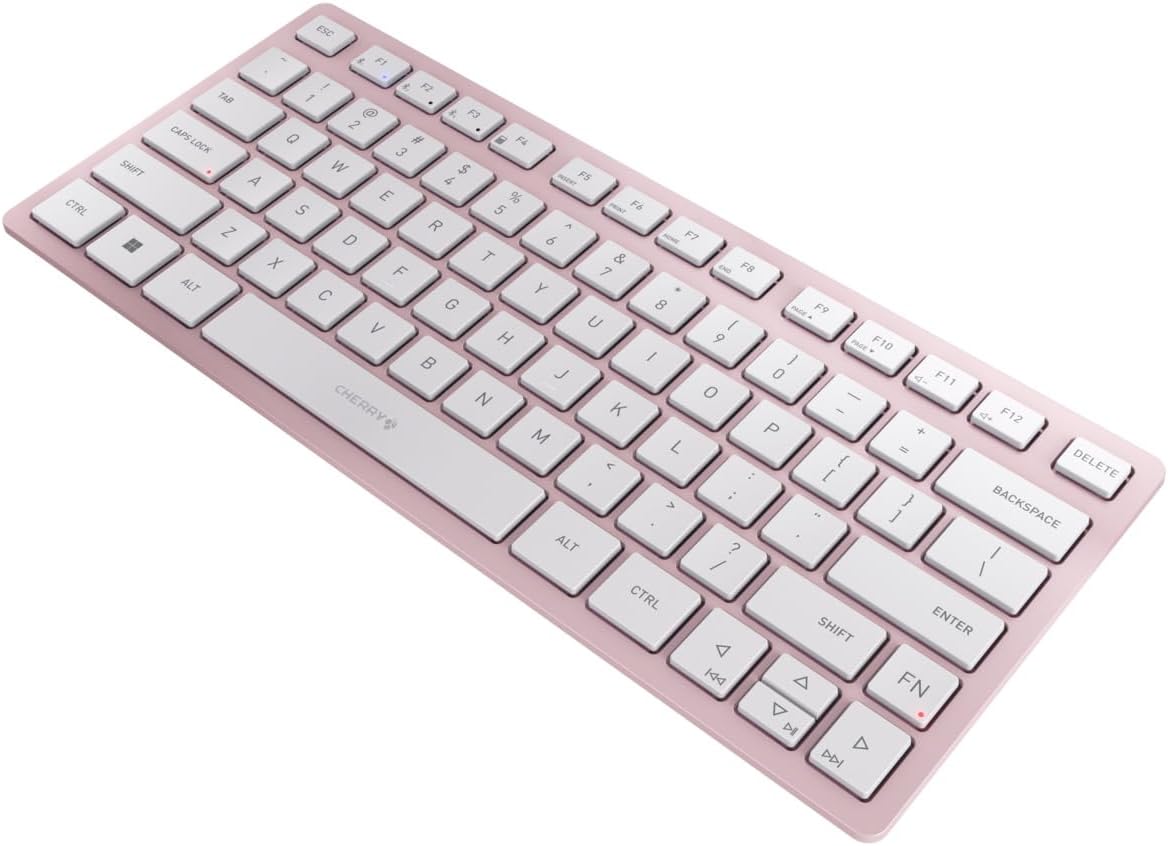
រូបភាពទី 3: មុំ view of the keyboard, highlighting its slim profile.

រូបភាពទី 4: ចំហៀង view showing the adjustable feet extended for an ergonomic typing angle.
5. ការថែទាំ
5.1. ការសម្អាត
To clean your keyboard, gently wipe the keycaps and surface with a soft, lint-free cloth. For stubborn dirt, slightly dampen the cloth with water or a mild, non-abrasive cleaning solution. Avoid excessive moisture and do not spray cleaners directly onto the keyboard.
5.2. ការផ្ទុក
When not in use, especially during travel, store the keyboard in its included carrying case to protect it from dust, scratches, and minor impacts.

Figure 5: The keyboard stored in its protective carrying case.
6. ការដោះស្រាយបញ្ហា
៥.១. ក្ដារចុចមិនភ្ជាប់
- ត្រូវប្រាកដថាក្តារចុចត្រូវបានបើក។
- ពិនិត្យថ្ម ហើយជំនួសវាប្រសិនបើចាំបាច់។
- For Bluetooth, ensure the correct channel (F1, F2, or F3) is selected and the keyboard is in pairing mode (blinking LED).
- For 2.4 GHz wireless, ensure the nano receiver is securely plugged into a USB-A port.
- Try connecting via the USB-C cable to rule out wireless issues.
- ចាប់ផ្តើមឧបករណ៍របស់អ្នកឡើងវិញ ហើយព្យាយាមផ្គូផ្គងម្តងទៀត។
៥.៣. គ្រាប់ចុចមិនឆ្លើយតប
- សូមពិនិត្យមើលការតភ្ជាប់ដូចដែលបានពិពណ៌នាខាងលើ។
- ត្រូវប្រាកដថាមិនមានកំទេចកំទីជាប់នៅក្រោមសោឡើយ។
- ប្រសិនបើប្រើការភ្ជាប់ខ្សែ សូមសាកល្បងរន្ធ USB ឬខ្សែផ្សេង។
៤. អាយុកាលថ្មខ្លី
- Ensure you are using fresh, high-quality AAA batteries.
- Turn off the keyboard when not in use to conserve battery power.
7. លក្ខណៈបច្ចេកទេស
| លក្ខណៈ | ការបញ្ជាក់ |
|---|---|
| ឈ្មោះម៉ូដែល | KW ២០១៩ |
| លេខម៉ូដែលធាតុ | JK-7100US-19 |
| ម៉ាក | Cherry |
| បច្ចេកវិទ្យាតភ្ជាប់ | Bluetooth 5.1 (3 channels), 2.4 GHz Wireless, USB-C Wired |
| ឧបករណ៍ដែលត្រូវគ្នា។ | កុំព្យូទ័រយួរដៃ ស្មាតហ្វូន ថេប្លេត |
| ការពិពណ៌នាក្តារចុច | Compact, Multi-Device |
| យន្តការគន្លឹះ | CHERRY SX Scissor Mechanism |
| ប្រភពថាមពល | ថ្ម 2x AAA |
| ការអ៊ិនគ្រីប | AES-128 |
| វិមាត្រផលិតផល | 11.6 x 5.1 x 0.6 អ៊ីញ |
| ទំងន់ធាតុ | 1.4 ផោន |
| សម្ភារៈ | លោហៈ, ផ្លាស្ទិច |
| ពណ៌ | ផ្កាសាគូរ៉ា |
8. ការធានា និងការគាំទ្រ
This product is covered by Cherry's standard manufacturer warranty. For detailed warranty information, technical support, or service inquiries, please visit the official Cherry webគេហទំព័រ ឬទាក់ទងផ្នែកគាំទ្រអតិថិជនរបស់ពួកគេដោយផ្ទាល់។
ក្រុមហ៊ុនផលិត៖ Cherry
Webគេហទំព័រ៖ www.cherry.de