
Avision AD340G

សៀវភៅណែនាំអ្នកប្រើប្រាស់ម៉ាស៊ីនស្កេនឯកសារពីរផ្លូវល្បឿនលឿន Avision AD340G
ម៉ូដែល: AD340G
សេចក្តីផ្តើម
This manual provides comprehensive instructions for the setup, operation, maintenance, and troubleshooting of your Avision AD340G Compact High Speed Duplex Document Scanner. Please read this manual thoroughly before using the scanner to ensure proper and safe operation.
ព័ត៌មានសុវត្ថិភាព
អនុវត្តតាមការប្រុងប្រយ័ត្នសុវត្ថិភាពខាងក្រោមដើម្បីការពារការរងរបួស និងការខូចខាតដល់ម៉ាស៊ីនស្កេន៖
- ប្រើតែអាដាប់ទ័រថាមពលដែលផ្គត់ផ្គង់ជាមួយម៉ាស៊ីនស្កេន។
- កុំឲ្យម៉ាស៊ីនស្កេនត្រូវទឹក ឬសំណើមខ្លាំងពេក។
- ដាក់ម៉ាស៊ីនស្កេននៅលើផ្ទៃរាបស្មើ និងមានស្ថេរភាព។
- Keep the scanner away from direct sunlight and heat sources.
- Unplug the scanner before cleaning or if it will not be used for an extended period.
មាតិកាកញ្ចប់
ផ្ទៀងផ្ទាត់ថាធាតុទាំងអស់មាននៅក្នុងកញ្ចប់៖
- Avision AD340G Document Scanner
- អាដាប់ទ័រថាមពល
- ខ្សែ USB
- មគ្គុទ្ទេសក៍ចាប់ផ្តើមរហ័ស
- Software CD (or download instructions)
ផលិតផលលើសview
Familiarize yourself with the main components of the Avision AD340G scanner.
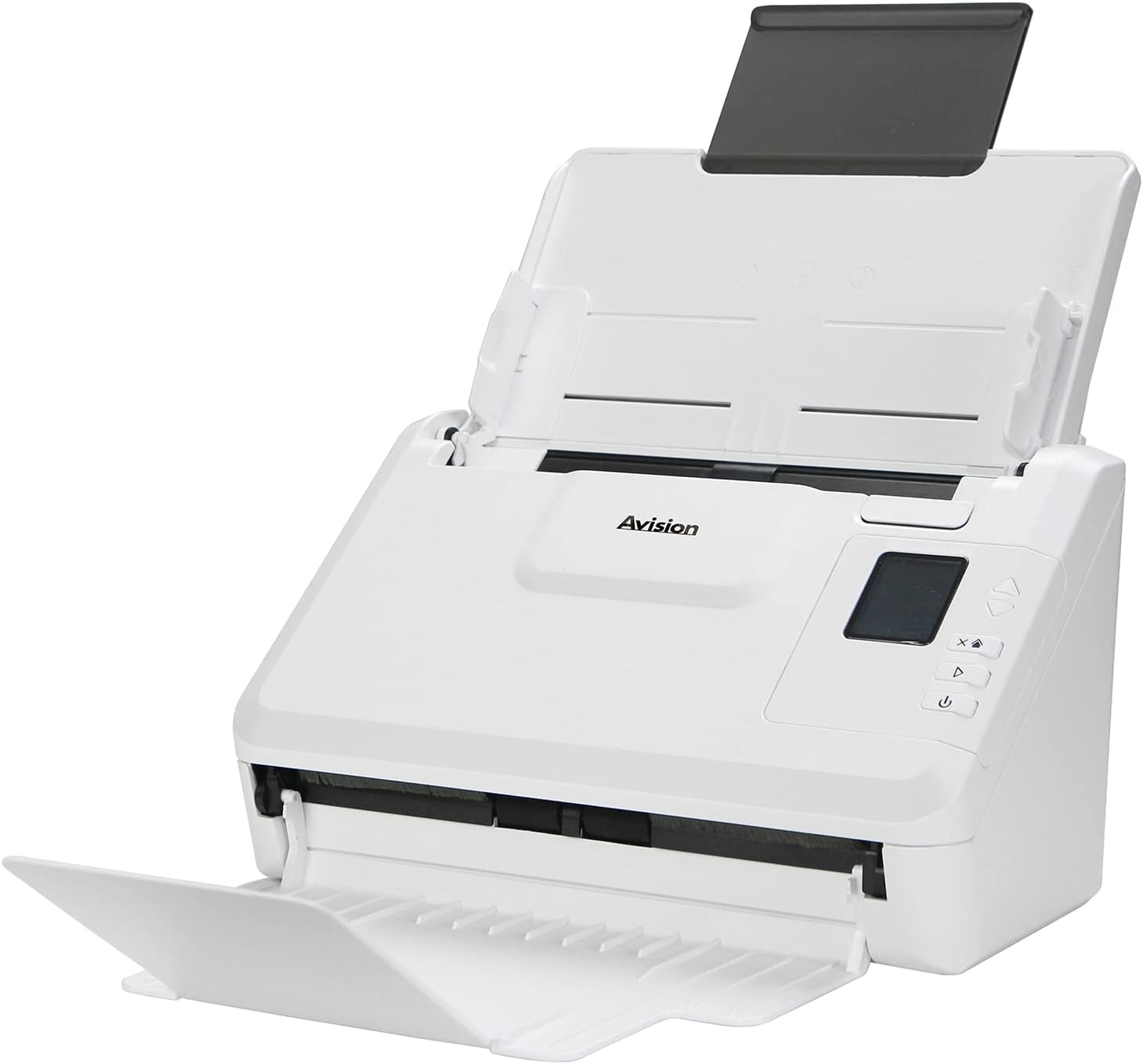
រូបភាព៖ The Avision AD340G scanner shown with its input and output trays extended, ready for document feeding. This view highlights the compact design and accessible paper path.
- Document Feeder Tray: Where documents are loaded for scanning.
- ថាសទិន្នផល៖ Where scanned documents are ejected.
- ផ្ទាំងបញ្ជា៖ Buttons and display for scanner operation.
- ច្រក USB៖ សម្រាប់ភ្ជាប់ទៅកុំព្យូទ័រ។
- ច្រកថាមពល៖ សម្រាប់ភ្ជាប់អាដាប់ទ័រថាមពល។
រៀបចំ
1. ការរៀបចំរាងកាយ
- ស្រាយម៉ាស៊ីនស្កេន៖ យកម៉ាស៊ីនស្កេន និងគ្រឿងបន្ថែមទាំងអស់ចេញពីវេចខ្ចប់ដោយប្រុងប្រយ័ត្ន។
- ដាក់ម៉ាស៊ីនស្កេន៖ Position the scanner on a flat, stable surface with adequate space for the input and output trays.
- ភ្ជាប់ថាមពល៖
- Connect the power adapter to the scanner's power port.
- ដោតអាដាប់ទ័រថាមពលទៅក្នុងព្រីភ្លើង។
- ភ្ជាប់ទៅកុំព្យូទ័រ៖
- Connect one end of the USB cable to the scanner's USB port.
- ភ្ជាប់ចុងម្ខាងទៀតនៃខ្សែ USB ទៅនឹងរន្ធ USB ដែលមាននៅលើកុំព្យូទ័ររបស់អ្នក។
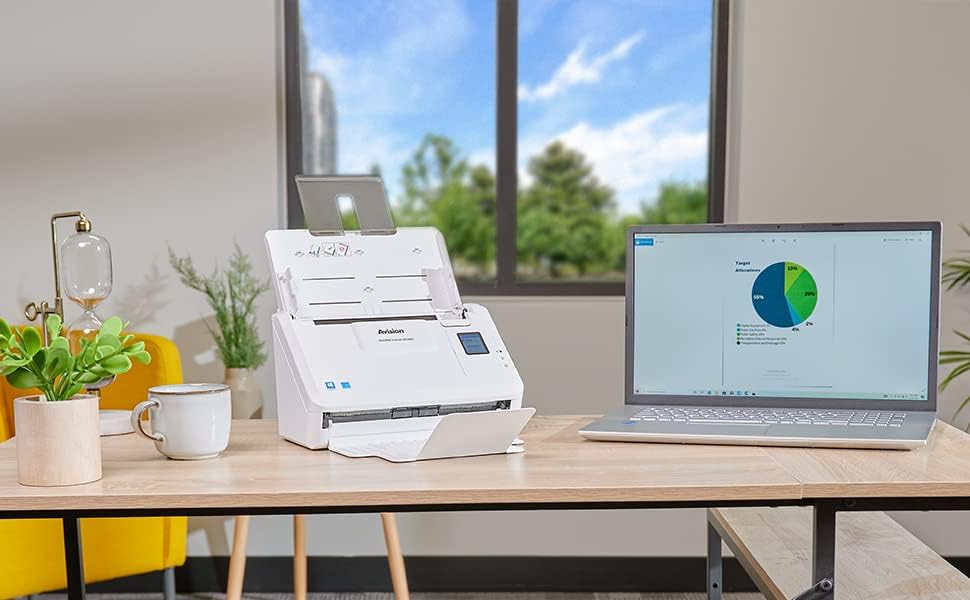
រូបភាព៖ The Avision AD340G scanner set up on a desk next to a laptop, illustrating a typical connected environment. This shows the scanner's compact footprint when in use.
2. ការដំឡើងកម្មវិធី
Install the necessary drivers and scanning software from the provided CD or by downloading them from the official Avision webគេហទំព័រ។
- Insert the software CD into your computer's CD/DVD drive, or navigate to the Avision support website to download the latest drivers and utilities for the AD340G model.
- Follow the on-screen instructions to complete the installation. This typically includes installing the TWAIN/ISIS drivers and the Avision scanning utility software.
- ចាប់ផ្ដើមកុំព្យូទ័ររបស់អ្នកឡើងវិញ ប្រសិនបើត្រូវបានសួរ។
ដំណើរការម៉ាស៊ីនស្កេន
1. កំពុងផ្ទុកឯកសារ
- Open the document feeder tray and extend the output tray.
- កែតម្រូវមគ្គុទ្ទេសក៍ក្រដាសឱ្យត្រូវនឹងទទឹងឯកសាររបស់អ្នក។
- Place the documents face-down in the input tray, ensuring they are neatly stacked and aligned. The scanner supports up to 50 sheets.

រូបភាព៖ A hand carefully placing a stack of documents into the input tray of the Avision AD340G scanner, demonstrating the correct loading procedure.
2. Scanning Procedure
- បើកម៉ាស៊ីនស្កេនដោយចុចប៊ូតុងថាមពល។
- Launch the Avision scanning software on your computer.
- ជ្រើសរើសអ្នកជំនាញស្កេនដែលអ្នកចង់បានfile (e.g., color, grayscale, black & white, resolution). The AD340G supports duplex scanning (both sides simultaneously).
- Click the "Scan" button in the software or press the scan button on the scanner's control panel.
- The scanner will feed and process the documents. Once scanning is complete, the images will appear in the software.
- Review the scanned images, make any necessary adjustments (e.g., rotate, crop), and save them to your desired location and format (e.g., PDF, JPEG, TIFF).
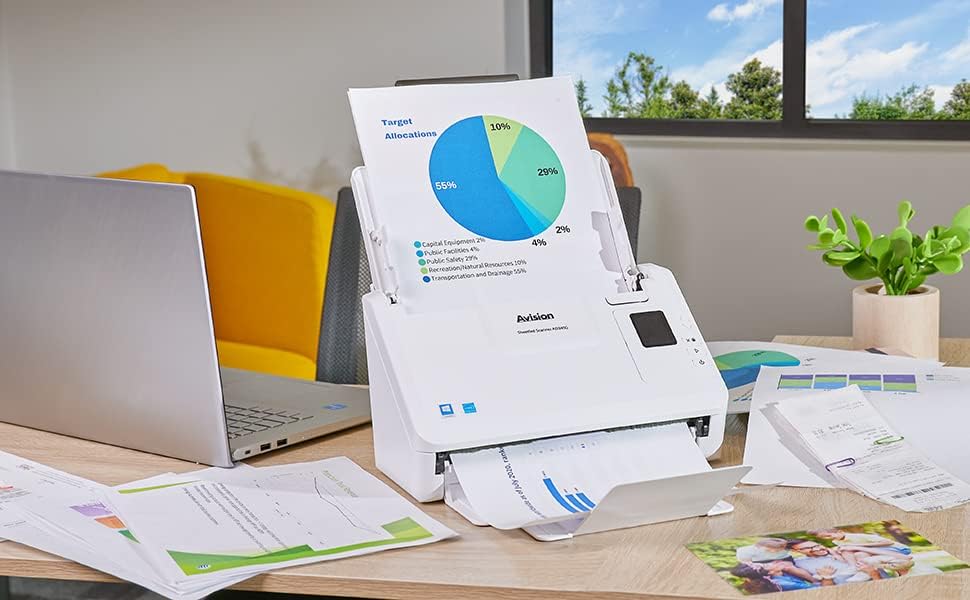
រូបភាព៖ The Avision AD340G scanner in operation, feeding a document with a pie chart. This illustrates the scanner's ability to handle various document types efficiently.
ថែទាំ
ការសម្អាតម៉ាស៊ីនស្កេន
ការសម្អាតជាប្រចាំធានានូវដំណើរការល្អបំផុត និងពន្យារអាយុកាលរបស់ម៉ាស៊ីនស្កេនរបស់អ្នក។
- បិទភ្លើង និងដកដោត៖ Always turn off the scanner and disconnect the power adapter and USB cable before cleaning.
- សម្អាតផ្នែកខាងក្រៅ៖ Wipe the exterior of the scanner with a soft, lint-free cloth lightly dampលាយជាមួយទឹក ឬឧបករណ៍សម្អាតស្រាល និងមិនមានសំណឹក។
- Clean Interior (Rollers and Glass):
- Open the scanner cover to access the rollers and glass scanning surfaces.
- Gently wipe the feed rollers with a clean, lint-free cloth. If necessary, use a small amount of isopropyl alcohol on the cloth for stubborn residue.
- Clean the glass scanning strips with a soft cloth and glass cleaner (non-ammonia based).
- Allow all components to dry completely before closing the cover and reconnecting power.
ការដោះស្រាយបញ្ហា
| បញ្ហា | មូលហេតុដែលអាចកើតមាន | ដំណោះស្រាយ |
|---|---|---|
| ម៉ាស៊ីនស្កេនមិនបើកទេ។ | ខ្សែថាមពលមិនត្រូវបានភ្ជាប់; បញ្ហាព្រីភ្លើង។ | ត្រូវប្រាកដថាខ្សែថាមពលត្រូវបានភ្ជាប់ដោយសុវត្ថិភាព។ សាកល្បងព្រីភ្លើងផ្សេង។ |
| Documents jam frequently. | Misaligned paper guides; worn rollers; dirty rollers. | Adjust paper guides. Clean the feed rollers. If problem persists, rollers may need replacement. |
| រូបភាពដែលស្កេនមានភាពព្រិលៗ ឬមានបន្ទាត់។ | Dirty scanning glass; incorrect resolution settings. | Clean the scanning glass. Adjust scanning resolution in the software. |
| កុំព្យូទ័ររកមិនឃើញម៉ាស៊ីនស្កេនទេ។ | ខ្សែ USB ត្រូវបានផ្តាច់; កម្មវិធីបញ្ជាមិនត្រូវបានដំឡើងឬខូច។ | Check USB cable connection. Reinstall scanner drivers. Try a different USB port. |
លក្ខណៈបច្ចេកទេស
Key technical specifications for the Avision AD340G Document Scanner:
- ម៉ូដែល៖ AD340G
- ប្រភេទម៉ាស៊ីនស្កេន៖ ADF Duplex Document Scanner
- ការតភ្ជាប់៖ យូអេសប៊ី
- ដំណោះស្រាយ៖ ៦០០ dpi (អុបទិក)
- ល្បឿនស្កេន៖ 40 ppm (pages per minute) / 80 ipm (images per minute)
- ជម្រៅពណ៌៖ 48 bits input / 24 bits output
- សមត្ថភាពសន្លឹកស្តង់ដារ៖ 50 សន្លឹក
- បច្ចេកវិទ្យាឧបករណ៍ចាប់សញ្ញាអុបទិក៖ ស៊ីអាយអេស (ឧបករណ៍ចាប់រូបភាពទំនាក់ទំនង)
- ទំហំផលិតផល៖ 11 x 6.1 x 6.5 អ៊ីញ
- ទំងន់ធាតុ៖ 8 ផោន
- តម្រូវការប្រព័ន្ធអប្បបរមា៖ វីនដូ XP/7/8/10
ការធានា និងការគាំទ្រ
For warranty information, technical support, or service inquiries, please refer to the warranty card included with your product or visit the official Avision webគេហទំព័រ។ ព័ត៌មានទំនាក់ទំនងសម្រាប់ការគាំទ្រអតិថិជនជាធម្មតាអាចរកបាននៅលើគេហទំព័ររបស់អ្នកផលិត webគេហទំព័រ។
Avision Official Webគេហទំព័រ៖ www.avision.com
Ask a question about this manual
Ask about setup, troubleshooting, compatibility, parts, safety, or missing instructions. Manuals+ will review the question and use this page’s manual context to help answer it.