
1. សេចក្តីផ្តើម
Thank you for choosing the iClever GK08 Wireless Keyboard and Mouse Combo. This full-size keyboard with a numeric keypad and a silent mouse offers a stable 2.4 GHz connection, USB-C recharging, and dual-layout compatibility for Mac and Windows systems. This manual provides detailed instructions to help you set up, operate, and maintain your new device.
2. ព័ត៌មានសុវត្ថិភាព
- ទុកឧបករណ៍ឱ្យឆ្ងាយពីទឹក ភ្លើង និងសីតុណ្ហភាពខ្ពស់។
- កុំព្យាយាមរុះរើ ឬកែប្រែឧបករណ៍។
- ប្រើតែខ្សែ USB-C ដែលត្រូវបានផ្តល់សម្រាប់ការសាកថ្ម។
- ជៀសវាងការទម្លាក់ ឬដាក់ឧបករណ៍ទៅនឹងផលប៉ះពាល់ខ្លាំង។
- បោះចោលថ្ម និងគ្រឿងអេឡិចត្រូនិចដោយការទទួលខុសត្រូវ យោងតាមបទប្បញ្ញត្តិក្នុងស្រុក។
3. ការណែនាំអំពីការដំឡើង
3.1 មាតិកាកញ្ចប់
- ក្តារចុចឥតខ្សែ iClever GK08
- កណ្ដុរឥតខ្សែ iClever
- USB-A Nano Receiver (stored inside the mouse)
- ខ្សែសាក USB-C
- គម្របធូលីដែលអាចលាងសម្អាតបាន
- សៀវភៅណែនាំអ្នកប្រើប្រាស់
3.2 ការសាកថ្មដំបូង
Before first use, ensure both the keyboard and mouse are fully charged.
- Connect the provided USB-C charging cable to the keyboard's USB-C port (located on the top edge).
- ភ្ជាប់ចុងម្ខាងទៀតនៃខ្សែទៅនឹងប្រភពថាមពល USB (ឧ. រន្ធ USB កុំព្យូទ័រ, អាដាប់ទ័រជញ្ជាំង USB) ។
- The charging indicator light on the keyboard will illuminate during charging and turn off when fully charged.
- For the mouse, connect the USB-C cable to its charging port. The mouse also has an indicator light.
- A full charge takes approximately 2 hours and provides up to 45 days of use for the keyboard.
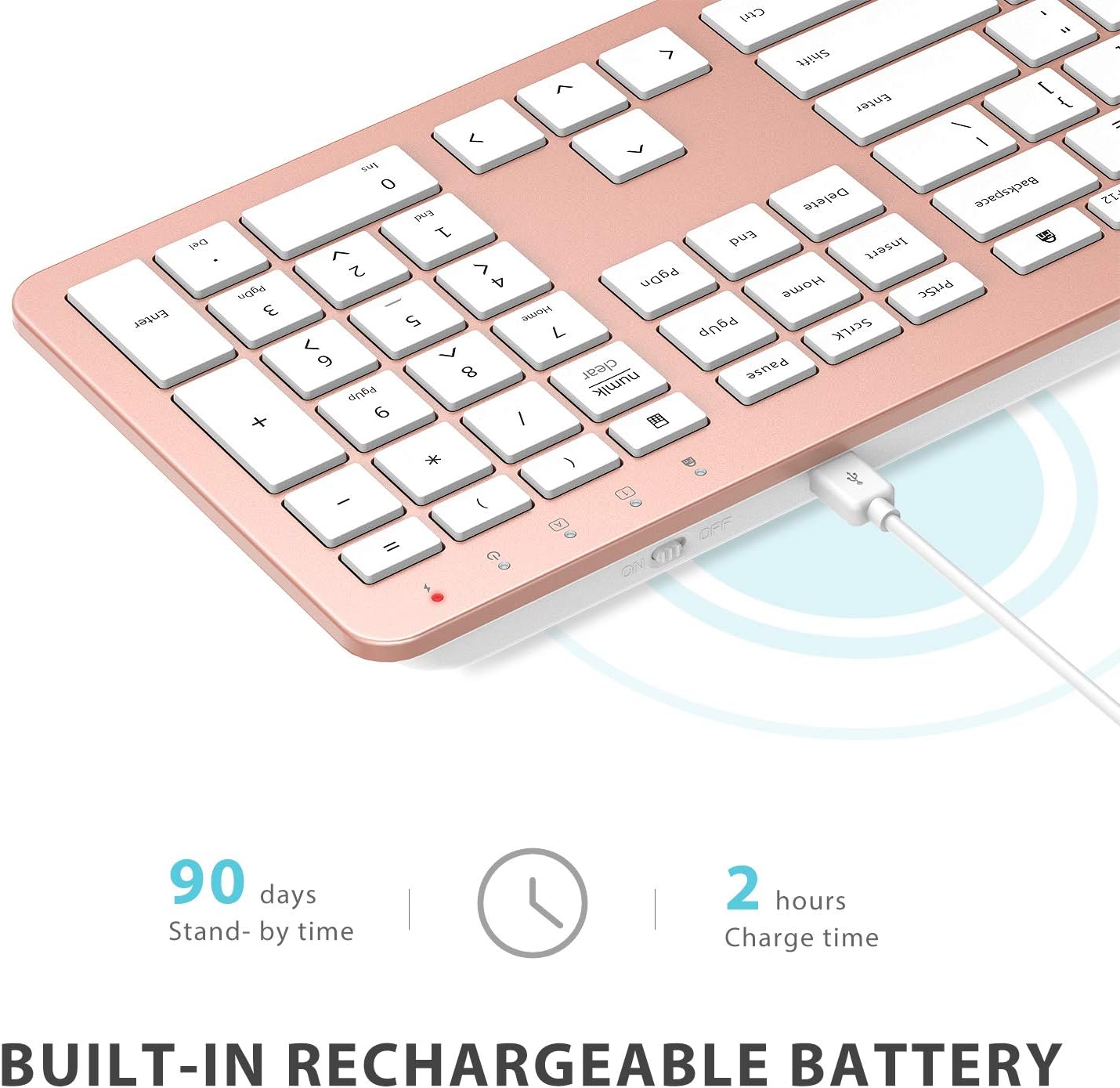
Image: The iClever GK08 keyboard connected to a USB-C charging cable, illustrating the charging process and battery life indicators.
3.3 Connecting to Your Computer (2.4 GHz Wireless)
The keyboard and mouse connect via a single 2.4 GHz USB-A nano receiver.
- Locate the USB-A nano receiver. It is typically stored in a compartment on the underside of the mouse.
- ដោតឧបករណ៍ទទួលណាណូចូលទៅក្នុងរន្ធ USB-A ដែលមាននៅលើកុំព្យូទ័ររបស់អ្នក។
- Turn on the keyboard using the ON/OFF switch (usually on the top edge).
- Turn on the mouse using the ON/OFF switch (located on the underside).
- Your computer should automatically detect and install the necessary drivers. The devices are ready for use once recognized.
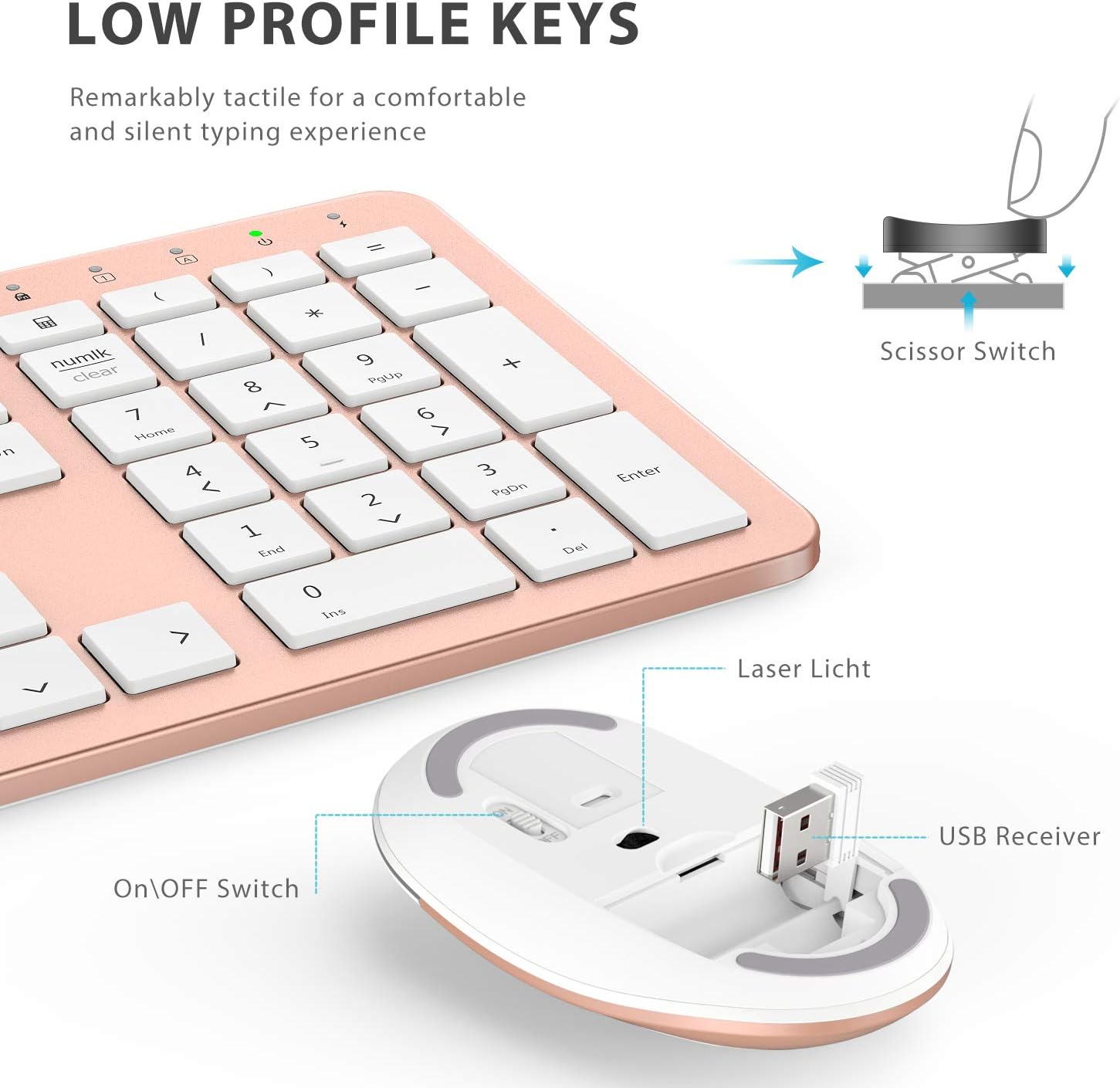
រូបភាព៖ ទិដ្ឋភាពជិតស្និទ្ធ view of the iClever mouse, highlighting the compartment where the USB nano receiver is stored for convenience.
3.4 ការត្រួតពិនិត្យភាពឆបគ្នា។
This combo requires an available USB-A port for the nano receiver. For newer Macs with only USB-C ports, a USB-C to USB-A adapter (not included) is required. It is compatible with:
- Windows 10/11 PC & laptop
- macOS desktops / notebooks with USB-A port (e.g., iMac Retina 4K/5K, MacBook Air/Pro ≤ 2017)
- Chrome OS

Image: A visual representation emphasizing the requirement of a USB-A port for the 2.4G wireless receiver, with a note about USB-C adapters for newer devices.
4. សេចក្តីណែនាំប្រតិបត្តិការ
4.1 មុខងារក្តារចុច
- ប្លង់ទំហំពេញ៖ The keyboard features a 110-key layout with a dedicated numeric keypad for efficient data entry.
- គ្រាប់ចុចប្តូរកន្ត្រៃស្ងាត់ៗ៖ Enjoy a comfortable and quiet typing experience with low-profile keys that produce less than 50 dB of sound.
- Media Shortcuts: Access common media functions directly from the keyboard.
- Dual-Layout Compatibility: The keyboard has clearly printed Mac and PC legends.
Switching Between Mac and Windows Layouts:
- សម្រាប់ វីនដូ៖ ចុច Fn + W to activate Win, Alt, NumLK functions.
- សម្រាប់ Mac OS៖ ចុច Fn + Q to activate Alt (Option), Cmd, Clear functions.

Image: The iClever GK08 keyboard displaying the dual Mac and Windows key legends, with instructions for switching between operating system layouts using the Fn key combinations.
៥.២ មុខងារកណ្ដុរ
- ចុចស្ងាត់៖ The mouse is designed for quiet operation, minimizing distractions.
- DPI ដែលអាចលៃតម្រូវបាន៖ The mouse features 3 adjustable DPI levels (800/1200/1600) to customize cursor sensitivity. Press the DPI button (usually located near the scroll wheel) to cycle through the settings.

Image: A visual demonstrating the quiet operation of the iClever mouse and the three adjustable DPI settings (800, 1200, 1600) for varied precision needs.
៥.២ មុខងារបិទដោយស្វ័យប្រវត្តិ
To conserve battery life, both the keyboard and mouse will enter an auto-sleep mode after 10 minutes of inactivity. To wake them up, simply press any key on the keyboard or move the mouse.
Video: A seller-provided video demonstrating the plug-and-play functionality and long battery life of the iClever Wireless Keyboard and Mouse. This video highlights the ease of setup and extended usage between charges.
5. ការថែទាំ
- ការសម្អាត៖ ប្រើទន់ ឃamp cloth to clean the surfaces of the keyboard and mouse. Avoid harsh chemicals.
- គម្របធូលី៖ Utilize the included washable dust cover to protect the keyboard from dust and spills when not in use.
- ការផ្ទុក៖ When not in use for extended periods, turn off both devices to conserve battery. Store the USB receiver inside the mouse.
6. ការដោះស្រាយបញ្ហា
- គ្មានការតភ្ជាប់៖
- Ensure both keyboard and mouse are turned ON.
- Verify the USB nano receiver is securely plugged into a working USB-A port on your computer.
- សាកល្បងដោតឧបករណ៍ទទួលទៅក្នុងរន្ធ USB-A ផ្សេង។
- Check if the devices are charged.
- ការយឺតយ៉ាវ ឬការតភ្ជាប់មិនទៀងទាត់៖
- Ensure the devices are within the 33 ft / 10 m operating range of the receiver.
- Avoid placing the receiver near strong interference sources (e.g., other wireless devices, large metal objects).
- Re-pair the devices by unplugging and re-plugging the receiver.
- Keyboard Not Typing Correctly (Mac/Windows):
- Ensure you have selected the correct operating system layout using Fn + W សម្រាប់ Windows ឬ Fn + Q សម្រាប់ Mac ។
- Mouse Cursor Jumps ឬមិនត្រឹមត្រូវ៖
- Adjust the DPI setting using the DPI button on the mouse.
- ត្រូវប្រាកដថាឧបករណ៍ចាប់សញ្ញាកណ្ដុរស្អាត និងគ្មានឧបសគ្គ។
- ប្រើកណ្ដុរលើផ្ទៃសមរម្យ (មិនឆ្លុះបញ្ចាំងខ្លាំង ឬថ្លា)។
7. លក្ខណៈបច្ចេកទេស
| លក្ខណៈ | លម្អិត |
|---|---|
| ម៉ាក | iClever |
| លេខម៉ូដែល | GK08 |
| ពណ៌ | មាសផ្កាឈូក |
| បច្ចេកវិទ្យាតភ្ជាប់ | 2.4 GHz wireless (USB-A nano receiver) |
| ជួរឥតខ្សែ | រហូតដល់ 33 ហ្វីត / 10 ម៉ែត្រ |
| ប្លង់ក្តារចុច | QWERTY, Full-size 110-key with Numpad |
| ប្រភេទសោ | Scissor Switch (Quiet typing < 50 dB) |
| ប្រភពថាមពល | Rechargeable Lithium Ion Battery (Keyboard) |
| ច្រកសាក | USB-C |
| ពេលវេលាសាកថ្ម | ប្រហែល 2 ម៉ោង។ |
| អាយុកាលថ្ម (ក្តារចុច) | រហូតដល់ ៧ ថ្ងៃ (ការប្រើប្រាស់ធម្មតា) |
| ការកំណត់ DPI កណ្ដុរ | 800/1200/1600 DPI |
| ប្រព័ន្ធប្រតិបត្តិការដែលត្រូវគ្នា។ | Windows 8/10/11, macOS, Chrome OS |
| លក្ខណៈពិសេស | Dual Mac/Windows layout, 10-min auto-sleep, Washable dust cover |
8. ការធានា និងការគាំទ្រ
iClever products typically come with a standard manufacturer's warranty. Please refer to the warranty card included in your product packaging or visit the official iClever webគេហទំព័រសម្រាប់លក្ខខណ្ឌធានាលម្អិត។
សម្រាប់ការគាំទ្របច្ចេកទេស ជំនួយដោះស្រាយបញ្ហា ឬការសាកសួរណាមួយទាក់ទងនឹងផលិតផល សូមទាក់ទងសេវាកម្មអតិថិជន iClever តាមរយៈគេហទំព័រផ្លូវការរបស់ពួកគេ។ webគេហទំព័រ ឬព័ត៌មានទំនាក់ទំនងដែលមាននៅក្នុងឯកសារផលិតផលរបស់អ្នក។
ការគាំទ្រតាមអ៊ីនធឺណិត៖ www.iclever.com/support