
សេចក្តីផ្តើម
This manual provides essential information for setting up, operating, maintaining, and troubleshooting your Intel NUC 7 Business Mini PC (model NUC7i5DNKPC). This compact and powerful PC is designed for business environments, featuring a 7th Generation Intel Core i5 processor, 256GB NVMe SSD, 8GB DDR4-2133 memory, and Windows 10 Pro. It includes Intel vPro Technology for remote manageability and enhanced security, and Intel HD Graphics 620 supporting dual 4K monitors.
តើមានអ្វីនៅក្នុងប្រអប់
ផ្ទៀងផ្ទាត់ថាធាតុទាំងអស់មាននៅក្នុងកញ្ចប់៖
- Intel NUC 7 Business Mini PC Unit
- បន្ទះម៉ោន VESA
- Power Supply/Adapter (Note: An AC power cord is not included and must be supplied by the user. A 3-prong "laptop style" cord with 3 round pins in a triangle formation is required.)
- សៀវភៅណែនាំ (ឯកសារនេះ)
ផលិតផលលើសview
Familiarize yourself with the ports and features of your Intel NUC.
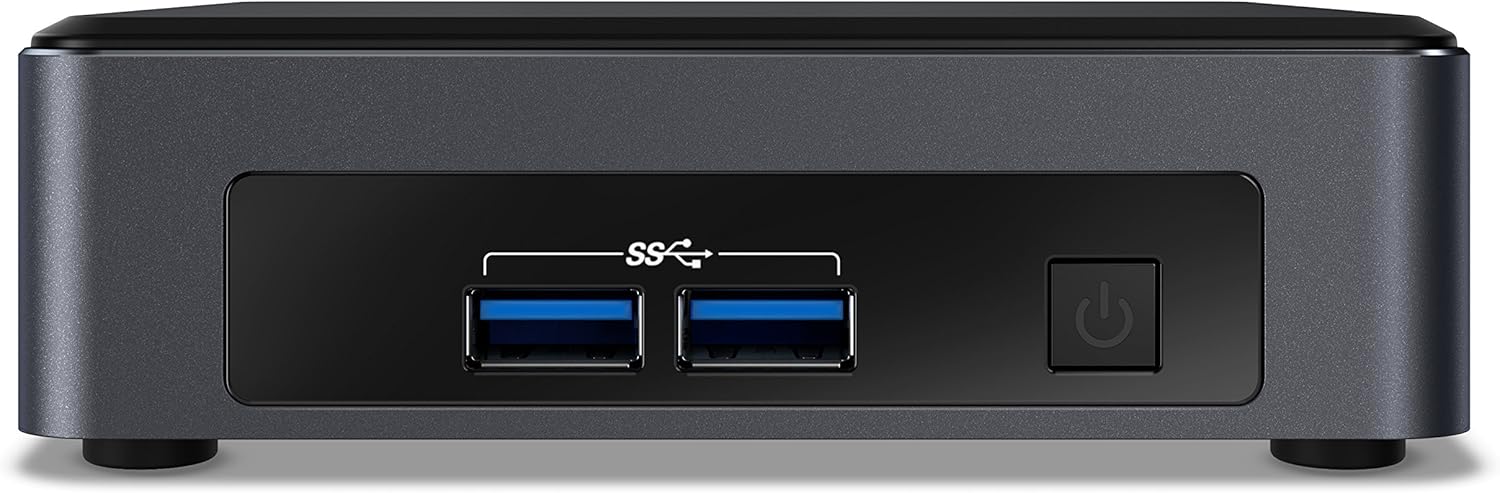
រូបភាពទី 1: បន្ទះខាងមុខ។ This image shows the front of the Intel NUC 7 Business Mini PC. It features two USB 3.0 ports (marked with "SS" for SuperSpeed) and a power button on the right side.

រូបភាព 2: បន្ទះខាងក្រោយ។ This image displays the rear of the Intel NUC 7 Business Mini PC. From left to right, it includes a 19V DC power input, two HDMI ports (one labeled "Protected UHD"), an Ethernet port, and two additional USB 3.0 ports.

Figure 3: Internal Access. This image shows the Intel NUC 7 Business Mini PC with its top cover partially removed, illustrating access to internal components for potential upgrades or maintenance.
រៀបចំ
- ភ្ជាប់ថាមពល៖ Connect the power adapter to the 19V DC input port on the rear of the NUC. Plug the AC power cord (not included) into the power adapter and then into a wall outlet.
- ភ្ជាប់អេក្រង់៖ Connect your monitor(s) to the HDMI ports on the rear of the NUC using HDMI cables. The NUC supports dual 4K displays.
- ភ្ជាប់គ្រឿងកុំព្យូទ័រ៖ Connect your USB keyboard, mouse, and any other USB devices to the available USB 3.0 ports (two on the front, two on the rear).
- ភ្ជាប់បណ្តាញ (ស្រេចចិត្ត)៖ For a wired internet connection, connect an Ethernet cable from your router or modem to the Ethernet port on the rear of the NUC. For wireless connectivity, the NUC includes built-in Wi-Fi and Bluetooth.
- បើកថាមពល៖ Press the power button located on the front panel of the NUC. The system will boot up.
- ការដំឡើង Windows 10 Pro ដំបូង៖ Follow the on-screen instructions to complete the initial setup of Windows 10 Pro, including language, region, network settings, and user account creation.
សេចក្តីណែនាំប្រតិបត្តិការ
- ប្រតិបត្តិការមូលដ្ឋាន៖ Once Windows 10 Pro is set up, you can use the NUC like any standard desktop computer. Launch applications, browse the web, and manage files.
- ការគាំទ្រអេក្រង់ពីរ៖ Utilize the two HDMI ports to connect multiple monitors for an extended desktop experience. Configure display settings within Windows.
- បច្ចេកវិទ្យា Intel vPro៖ This NUC includes Intel vPro Technology, enabling remote management and enhanced security features. Consult your IT administrator or Intel documentation for specific vPro setup and usage.
- Shut Down/Restart: To properly shut down or restart the NUC, use the options available in the Windows Start Menu. Avoid simply unplugging the power cable to prevent data loss.
ថែទាំ
- ការសម្អាត៖ Keep the NUC clean by gently wiping the exterior with a soft, dry cloth. Do not use liquid cleaners directly on the device. Ensure ventilation openings are free from dust and obstructions.
- ការអាប់ដេតកម្មវិធី៖ Regularly update Windows 10 Pro and Intel drivers to ensure optimal performance, security, and compatibility. Access Windows Update through the Settings menu.
- ការបម្រុងទុកទិន្នន័យ៖ បម្រុងទុកទិន្នន័យសំខាន់ៗជាប្រចាំទៅដ្រាយខាងក្រៅ ឬកន្លែងផ្ទុកពពកដើម្បីការពារការបាត់បង់ទិន្នន័យ។
ការដោះស្រាយបញ្ហា
- គ្មានថាមពល / ប្រព័ន្ធមិនបើក៖
- Ensure the power adapter is securely connected to the NUC and a working power outlet.
- Verify that you are using a compatible 3-prong AC power cord with the power adapter. This cord is not included with the NUC.
- សាកល្បងព្រីភ្លើងជាមួយឧបករណ៍ផ្សេងទៀត។
- គ្មានការបង្ហាញនៅលើម៉ូនីទ័រ៖
- Check that the HDMI cables are securely connected to both the NUC and the monitor.
- ត្រូវប្រាកដថាម៉ូនីទ័រត្រូវបានបើក ហើយកំណត់ទៅប្រភពបញ្ចូលត្រឹមត្រូវ (HDMI 1, HDMI 2, ល។)។
- Try connecting to a different HDMI port on the NUC or using a different monitor/cable if available.
- គ្មានការភ្ជាប់អ៊ីនធឺណិត៖
- For wired connections, ensure the Ethernet cable is properly connected and your router/modem is working.
- For wireless connections, check Wi-Fi settings in Windows to ensure you are connected to the correct network and the signal is strong.
- Restart your router/modem and the NUC.
- System Performance Issues:
- ត្រូវប្រាកដថា Windows និងកម្មវិធីបញ្ជាទាន់សម័យ។
- Check for background applications consuming excessive resources using Task Manager.
- ធានាឱ្យមានខ្យល់ចេញចូលគ្រប់គ្រាន់ដើម្បីការពារការឡើងកំដៅ។
លក្ខណៈបច្ចេកទេស
| លក្ខណៈ | លម្អិត |
|---|---|
| ឈ្មោះម៉ូដែល | Intel NUC 7 Business |
| លេខម៉ូដែល | BLKNUC7I5DNKPC1 |
| ម៉ាស៊ីនដំណើរការ | 7th Generation Intel Core i5-7300U (2.6 GHz CPU Speed) |
| ប្រព័ន្ធប្រតិបត្តិការ | Windows 10 Pro |
| RAM | 8GB DDR4-2133 (Max 32GB, 1 slot available) |
| ការផ្ទុក | 256GB NVMe SSD |
| ក្រាហ្វិក | ក្រាហ្វិក Intel HD 620 (រួមបញ្ចូល) |
| លទ្ធផលវីដេអូ | 2x HDMI (Supports dual 4K displays, Max Resolution: 3840 x 2160 pixels) |
| ច្រក USB | 4x USB 3.0 (Total) |
| បណ្តាញ | Ethernet, Wi-Fi (802.11b/g/n), Bluetooth |
| លក្ខណៈពិសេស | Intel vPro Technology, Hardware TPM 2.0, Microphone |
| វិមាត្រ (LxWxH) | 5.59 x 4.88 x 4.49 អ៊ីញ |
| ទម្ងន់ | 2.2 ផោន |
| ពណ៌ | ខ្មៅ |
| UPC | 735858382656 |
ព័ត៌មានធានា
The Intel NUC 7 Business Mini PC comes with a ការធានា 3 ឆ្នាំមានកំណត់. For detailed terms and conditions, please refer to the official Intel warranty documentation or visit the Intel support webគេហទំព័រ។ រក្សាភស្តុតាងនៃការទិញរបស់អ្នកសម្រាប់ការទាមទារធានា។
គាំទ្រ
For further assistance, technical support, driver downloads, or additional documentation, please visit the official Intel support website. You can typically find support resources by searching for "Intel NUC support" or by navigating to ទំព័រជំនួយផ្លូវការរបស់ Intel.