
1. សេចក្តីផ្តើម
The Microsoft Surface 3 is a versatile 10.8-inch tablet designed for productivity and portability. Running on Windows 10 and powered by an Intel Atom processor, it offers a full PC experience in a compact form factor. This manual provides essential information for setting up, operating, maintaining, and troubleshooting your device.

Image: Microsoft Surface 3 Tablet with an attached red Type Cover keyboard and a silver Surface Pen. The screen displays a colorful image with digital annotations, demonstrating its versatility.
2. តើមានអ្វីនៅក្នុងប្រអប់
Upon unboxing your Microsoft Surface 3, verify that all standard components are present:
- Microsoft Surface 3 Tablet
- Power Supply Unit (Charger)
- មគ្គុទ្ទេសក៍ចាប់ផ្តើមរហ័ស (ប្រសិនបើរួមបញ្ចូល)
ចំណាំ៖ The Surface Pen and Type Cover keyboard are optional accessories and are typically sold separately. Ensure you have these if your purchase included them.
3. ឧបករណ៍លើសview
Familiarize yourself with the physical features and ports of your Surface 3 tablet.
3.1 ច្រក និងប៊ូតុង
- រន្ធ USB 3.0៖ សម្រាប់ភ្ជាប់ឧបករណ៍ USB ដូចជាដ្រាយខាងក្រៅ កណ្ដុរ ឬក្តារចុច។
- រន្ធសាកថ្ម Micro USB៖ ប្រើសម្រាប់សាកថ្មឧបករណ៍។
- Mini DisplayPort៖ សម្រាប់ភ្ជាប់ទៅអេក្រង់ខាងក្រៅ ឬម៉ាស៊ីនបញ្ចាំង។
- កាសស្តាប់ត្រចៀក៖ សម្រាប់ការបញ្ចេញសំឡេងទៅកាន់កាស ឬឧបករណ៍បំពងសំឡេងខាងក្រៅ។
- រន្ធដោតកាត MicroSD៖ For expanding storage with a microSDXC card.
- ប៊ូតុងកម្រិតសំឡេង៖ ដើម្បីកែសម្រួលកម្រិតសំឡេង។
- ប៊ូតុងថាមពល៖ ដើម្បីបើក/បិទឧបករណ៍ ឬដាក់វាឱ្យដេក។
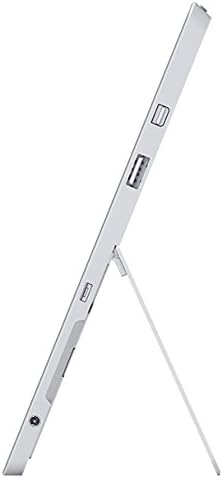
រូបភាព៖ ចំហៀង view of the Microsoft Surface 3, illustrating the various ports including USB, Mini DisplayPort, and the kickstand in an open position.

រូបភាព៖ បិទជិត view of the microSD card slot on the Microsoft Surface 3, with a microSD card partially inserted, demonstrating storage expansion capability.
3.2 កាមេរ៉ា
- កាមេរ៉ាក្រោយ៖ 8 MP for capturing photos and videos.
- កាមេរ៉ាខាងមុខ៖ 3.5 MP for video calls and selfies.
4. រៀបចំ
4.1 ការគិតថ្លៃដំបូង
Before first use, connect the Surface 3 to the power supply using the Micro USB charging port and allow it to charge fully. The battery indicator on the screen will show charging status.
៥.២ ការបើកថាមពល និងការដំឡើង Windows
- ចុចឱ្យជាប់ ប៊ូតុងថាមពល until the Microsoft logo appears on the screen.
- Follow the on-screen prompts to complete the Windows 10 setup process. This includes selecting your language, connecting to a Wi-Fi network, and creating or signing in with a Microsoft account.
- Allow the system to download and install any pending updates for optimal performance and security.
4.3 Attaching Optional Accessories
- Type Cover: Align the Type Cover with the magnetic connector at the bottom edge of the Surface 3 until it clicks into place.
- ប៊ិចផ្ទៃ៖ The Surface Pen can be magnetically attached to the side of the Surface 3 for storage. For initial pairing, follow the instructions provided with the pen or in Windows settings.
5. ប្រតិបត្តិការ
5.1 ការរុករក
- អេក្រង់ប៉ះ៖ Use gestures like tap, swipe, pinch-to-zoom for navigation.
- ប៊ិចផ្ទៃ៖ Use the pen for precise input, drawing, writing, and annotating.
- Type Cover (Optional): Provides a traditional keyboard and trackpad experience.

Image: Microsoft Surface 3 in use with a Type Cover keyboard and Surface Pen, displaying a Windows 10 interface with various applications.
5.2 Windows 10 Features
- ម៉ឺនុយចាប់ផ្តើម៖ ចូលប្រើកម្មវិធី ការកំណត់ និងជម្រើសថាមពល។
- មជ្ឈមណ្ឌលសកម្មភាព៖ Swipe from the right edge of the screen to access quick settings and notifications.
- កិច្ចការ View: View open applications and virtual desktops.
- របៀបថេប្លេត៖ Switch to Tablet Mode for a touch-optimized interface.
5.3 ការភ្ជាប់ទៅ Wi-Fi
- បើក មជ្ឈមណ្ឌលសកម្មភាព by swiping from the right edge of the screen or clicking the icon in the taskbar.
- ប៉ះ វ៉ាយហ្វាយ រូបតំណាង។
- ជ្រើសរើសបណ្តាញដែលអ្នកចង់បានពីបញ្ជី ហើយបញ្ចូលពាក្យសម្ងាត់ប្រសិនបើត្រូវបានសួរ។
6. ការថែទាំ
6.1 ការសម្អាត
- ប្រើក្រណាត់ទន់ គ្មានជាតិសរសៃ ឃampened with water or a screen cleaner specifically designed for electronics to clean the screen.
- ជៀសវាងសារធាតុគីមីដ៏គ្រោះថ្នាក់ សម្ភារៈសំណឹក ឬសំណើមលើស។
- Clean the device exterior with a soft, dry cloth.
6.2 ការធ្វើបច្ចុប្បន្នភាពកម្មវិធី
Regularly check for and install Windows updates to ensure your device has the latest security patches and performance improvements. Go to ការកំណត់ > អាប់ដេត និងសុវត្ថិភាព > Windows Update.
6.3 ការថែទាំថ្ម
- ជៀសវាងសីតុណ្ហភាពខ្លាំង ព្រោះវាអាចបន្ថយអាយុកាលថ្ម។
- For optimal battery longevity, avoid consistently draining the battery to 0% or keeping it at 100% for extended periods.
- The Surface 3 has an average battery life of up to 8 hours under typical usage conditions.
7. ការដោះស្រាយបញ្ហា
7.1 ឧបករណ៍មិនបើក
- Ensure the device is charged. Connect the power supply and wait a few minutes before attempting to power on again.
- Perform a force restart by holding the ប៊ូតុងថាមពល for 10-15 seconds, then release and press it again briefly.
7.2 បញ្ហានៃការភ្ជាប់ Wi-Fi
- Toggle Wi-Fi off and on in the Action Center.
- Restart your Surface 3 and your Wi-Fi router.
- Ensure you are within range of the Wi-Fi network and have the correct password.
7.3 ដំណើរការយឺត
- បិទកម្មវិធីដែលមិនចាំបាច់ដែលកំពុងដំណើរការក្នុងផ្ទៃខាងក្រោយ។
- ពិនិត្យ និងដំឡើងការអាប់ដេតវីនដូដែលមិនទាន់សម្រេច។
- ត្រូវប្រាកដថាអ្នកមានទំហំផ្ទុកទំនេរគ្រប់គ្រាន់។
8. លក្ខណៈបច្ចេកទេស
| លក្ខណៈ | លម្អិត |
|---|---|
| លេខម៉ូដែល | 7G6-00014 |
| ទំហំបង្ហាញ | ៤.៧៥ អ៊ីញ |
| គុណភាពបង្ហាញអេក្រង់ | 1920x1280 ភីកសែល |
| ម៉ាស៊ីនដំណើរការ | Intel Atom x7-Z8700 (2.4 GHz) |
| RAM | 4 ជីកាបៃ |
| ការផ្ទុក | 128 GB SSD |
| ប្រព័ន្ធប្រតិបត្តិការ | វីនដូ 10 |
| ឧបករណ៍ដំណើរការក្រាហ្វិក | Quad-core Intel Atom x7-Z8700 processor |
| ប្រភេទឥតខ្សែ | 802.11ac Wi-Fi, ប៊្លូធូស 4.0 |
| ច្រក USB | 1x USB 2.0, 1x USB 3.0 |
| អាយុកាលថ្មជាមធ្យម | 8 ម៉ោង។ |
| ទំងន់ធាតុ | 1.37 ផោន |
| វិមាត្រផលិតផល | 14.02 x 8.64 x 1.58 អ៊ីញ |
| ខាងក្រោយ Webដំណោះស្រាយកាមេរ៉ា | 8 MP |
| ខាងមុខ Webដំណោះស្រាយកាមេរ៉ា | 3.5 MP |
9. ការធានា និងការគាំទ្រ
Your Microsoft Surface 3 Tablet is covered by a limited manufacturer's warranty. For detailed warranty information, including terms and conditions, please refer to the documentation provided with your purchase or visit the official Microsoft support webគេហទំព័រ។
For technical assistance, software updates, and additional resources, please visit the official Microsoft Support website or contact their customer service. Keep your device's serial number (located on the back of the tablet or in Windows settings) readily available when seeking support.