
សេចក្តីផ្តើម
This manual provides instructions for the setup, operation, maintenance, and troubleshooting of your Microsoft Wireless Optical Mouse Blue, Model K80-00004. Please read this manual thoroughly before using your device.
តើមានអ្វីនៅក្នុងប្រអប់
ផ្ទៀងផ្ទាត់ថាធាតុទាំងអស់មាននៅក្នុងកញ្ចប់៖
- Microsoft Wireless Optical Mouse
- អ្នកទទួលឥតខ្សែ
- ថ្ម AA ចំនួន 2 (បានដំឡើងរួចជាស្រេច ឬរួមបញ្ចូលដោយឡែកពីគ្នា)
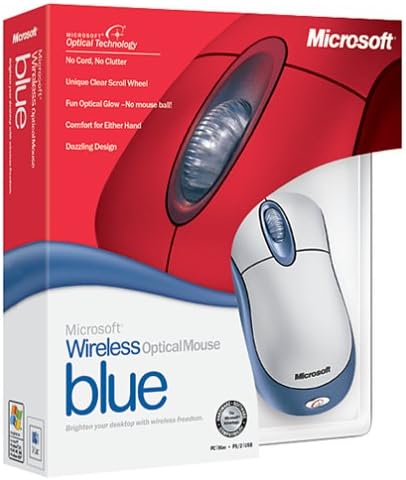
Image: Retail packaging of the Microsoft Wireless Optical Mouse Blue, showing the mouse and receiver.
រៀបចំ
1. តំឡើងអាគុយ
- កំណត់ទីតាំងប្រអប់ថ្មនៅផ្នែកខាងក្រោមនៃកណ្តុរ។
- បើកគម្របប្រអប់ថ្ម។
- បញ្ចូលថ្ម AA ពីរ ដោយធានាថាប៉ូលារីតត្រឹមត្រូវ (+/-)។
- បិទគម្របប្រអប់ថ្ម។

រូបភាព៖ ខាងមុខ view of the Microsoft Wireless Optical Mouse Blue, showing the top buttons and scroll wheel. The battery compartment is on the underside.
2. Connect the Wireless Receiver
- ដោតឧបករណ៍ទទួលឥតខ្សែ USB ទៅក្នុងរន្ធ USB ដែលមាននៅលើកុំព្យូទ័ររបស់អ្នក។
- Allow your operating system to detect and install the necessary drivers. This process is usually automatic.
- For optimal performance, ensure the receiver is placed at least 12 inches away from other wireless devices or large metal objects.
3. Optional Software Installation (IntelliPoint)
- While not required for basic functionality, installing Microsoft IntelliPoint software provides advanced customization options for your mouse buttons and scroll wheel.
- Refer to the Microsoft support website for the latest IntelliPoint software compatible with your operating system.
4. Set Orientation (Calibration)
- After initial setup, it is recommended to perform an "Orientation Set" or calibration if available through the IntelliPoint software or your operating system's mouse settings. This helps optimize tracking performance.
សេចក្តីណែនាំប្រតិបត្តិការ
The Microsoft Wireless Optical Mouse Blue is designed for comfortable and precise navigation.
មុខងារមូលដ្ឋាន
- ចុចខាងឆ្វេង៖ ប៊ូតុងចម្បងសម្រាប់ជ្រើសរើសធាតុ កំពុងបើក files និងធ្វើអន្តរកម្មជាមួយកម្មវិធី។
- ចុចកណ្ដុរស្ដាំ៖ ប៊ូតុងបន្ទាប់បន្សំសម្រាប់ចូលប្រើម៉ឺនុយបរិបទ និងជម្រើសបន្ថែម។
- កង់រមូរ៖ រំកិលកង់ឡើងលើ ឬចុះក្រោម ដើម្បីរំកិលតាមឯកសារ និង web pages. The scroll wheel may also function as a clickable button for additional commands, depending on software configuration.
ប្រតិបត្តិការឥតខ្សែ
- The mouse operates wirelessly up to 6 feet (approximately 1.8 meters) from its receiver.
- Optical technology scans the desktop surface for precise cursor movement without the need for a mouse pad on most surfaces.
- The mouse is designed for comfortable use with either the right or left hand.

រូបភាព៖ មុំ view of the Microsoft Wireless Optical Mouse Blue, highlighting its ergonomic shape and blue/silver design.
ថែទាំ
ការជំនួសថ្ម
- The mouse requires two AA batteries.
- When battery power is low, your computer may display a notification (if IntelliPoint software is installed) or mouse performance may degrade.
- Replace batteries as described in the "Install Batteries" section under Setup.
- Always use fresh, high-quality batteries for optimal performance.
ការសម្អាត
- To clean the mouse, gently wipe the surface with a soft, damp ក្រណាត់។
- ជៀសវាងការប្រើសារធាតុគីមីខ្លាំង ឬសារធាតុសម្អាតច្រេះ ព្រោះសារធាតុទាំងនេះអាចបំផ្លាញការបញ្ចប់។
- ត្រូវប្រាកដថាមិនមានសារធាតុរាវចូលក្នុងសមាសធាតុខាងក្នុងរបស់កណ្តុរទេ។
Travel Considerations
- The Microsoft Wireless Optical Mouse is a transmitting device. When traveling by air, it is recommended to remove the batteries from the mouse before boarding to comply with airline regulations regarding electronic devices.
ការដោះស្រាយបញ្ហា
Mouse Not Responding or Lagging
- ពិនិត្យថ្ម៖ ត្រូវប្រាកដថាថ្មត្រូវបានដំឡើងត្រឹមត្រូវ និងមានបន្ទុកគ្រប់គ្រាន់។ ជំនួសបើចាំបាច់។
- ពិនិត្យការតភ្ជាប់អ្នកទទួល៖ Ensure the wireless receiver is securely plugged into a functioning USB port. Try a different USB port.
- ជិត៖ Ensure the mouse is within 6 feet of the receiver. Reduce obstacles between the mouse and receiver.
- ការជ្រៀតជ្រែក៖ Other wireless devices (e.g., Wi-Fi routers, cordless phones) can cause interference. Move the receiver away from such devices.
- ផ្ទៃ៖ Ensure the mouse is used on a suitable surface. Highly reflective or transparent surfaces may affect optical tracking.
- Re-sync: Some wireless mice have a re-sync button on both the mouse and receiver. Consult the full product manual or Microsoft support for specific re-sync procedures for this model if issues persist.
Clicking Issues
- If clicks are not registering or require multiple presses, check for physical obstructions or debris around the buttons.
- ត្រូវប្រាកដថាកណ្ដុរត្រូវបានបើក និងភ្ជាប់។
ភាពឆបគ្នានៃកម្មវិធី
- The IntelliPoint software may have specific operating system requirements. For example, older versions may not be compatible with newer operating systems like Windows Vista or later.
- Always download the latest software from the official Microsoft support webគេហទំព័រសម្រាប់ប្រព័ន្ធប្រតិបត្តិការជាក់លាក់របស់អ្នក។
លក្ខណៈបច្ចេកទេស
| លក្ខណៈ | លម្អិត |
|---|---|
| លេខម៉ូដែល | K80-00004 |
| ម៉ាក | ក្រុមហ៊ុន Microsoft |
| បច្ចេកវិទ្យាតភ្ជាប់ | ឥតខ្សែ |
| ការរកឃើញចលនា | អុបទិក |
| ពណ៌ | Blue / Silver |
| ថ្ម | អាគុយ AA 2 គ្រាប់ (រួមបញ្ចូល) |
| ទំងន់ធាតុ | 13.6 អោន (ប្រហែល 385.5 ក្រាម) |
| វិមាត្រផលិតផល | 9.3 x 8.9 x 2.1 អ៊ីង (ប្រហែល 23.6 x 22.6 x 5.3 សង់ទីម៉ែត្រ) |
| កាលបរិច្ឆេទដំបូងដែលមាន | ថ្ងៃទី ២១ ខែសីហា ឆ្នាំ ២០២២ |
ព័ត៌មានធានា
According to the legal disclaimer, this product is sold without a warranty. Please refer to your point of purchase for any return or exchange policies.
គាំទ្រ
For further assistance, driver downloads, or updated information regarding your Microsoft Wireless Optical Mouse Blue, please visit the official Microsoft support webគេហទំព័រ។
You can typically find support resources by searching for "Microsoft support" and your product model number (K80-00004).